Dish Rating lets customers rate and share feedback on individual dishes they order. Customers can rate each dish from 1 to 5 stars and leave an optional comment. Your store can use this feedback to understand what customers enjoy and identify dishes that may need improvement. All ratings and comments remain private. Only your store can view them in the admin dashboard, and other customers cannot see them.
On This Page
- What Is Dish Rating?
- Enable Dish Rating
- How Customers Can Rate Their Dishes
- Important Rating Rules
- Exclude Items from Dish Rating
- View Dish Ratings in the Admin
- Frequently Asked Questions
What Is Dish Rating?
Dish Rating gives customers an easy way to review the individual dishes they order. After placing an order, customers can give each eligible dish a rating from 1 to 5 stars and optionally add a comment of up to 250 characters.
Your store can use these ratings and comments to understand customer preferences and identify opportunities to improve its menu.
Here are some key things to know about Dish Rating:
- Private feedback: Only your store can view ratings and comments. Customers cannot see other customers’ feedback.
- Individual dish ratings: Customers rate each eligible dish separately, not the entire order. This allows you to understand satisfaction levels of each individual dish.
- Optional comments: Customers can add a short comment of up to 250 characters alongside their star rating.
- 14-day rating period: Customers have 14 days from the order submission date to rate their dishes.
Recommendation for Using Dish Rating
Use dish ratings and comments to understand customer preferences and identify opportunities to improve your menu offers.
Enable Dish Rating
The Dish Rating setting is off by default. Therefore, you must first enable it on your store.
Here are the steps to follow to enable dish rating for your store.
- Open your store’s admin dashboard.
- Go to Settings > Order Capture.
- Scroll down to find the Dish Rating setting and turn on the toggle.

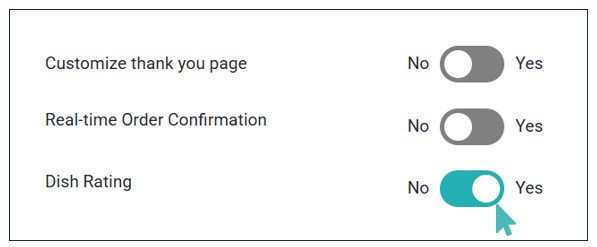
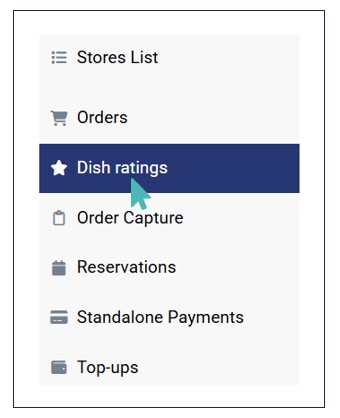
Once you enable the feature, customers can rate eligible dishes through their order confirmation email or order history on their account. Also, an additional Dish ratings option appears on the side menu, where you can view all customer dish ratings.
How Customers Can Rate Their Dishes
Customers can open the dish rating page in either of these ways:
1. Through the Order Confirmation Email
After a customer places an order, GonnaOrder sends an order confirmation email with a Rate your dishes button. The customer can click this button to open the rating page for that order.
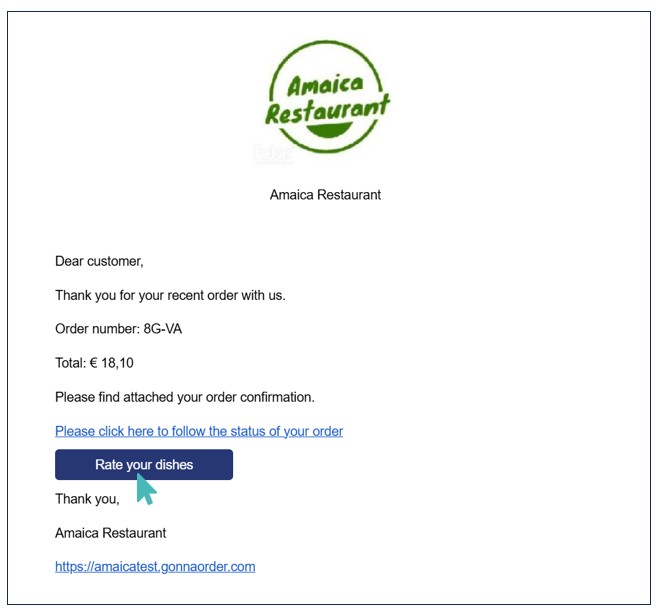
When the customer clicks the button, they are redirected to the rating page where they can rate and provide their feedback on the dishes served.
2. Through Their Order History
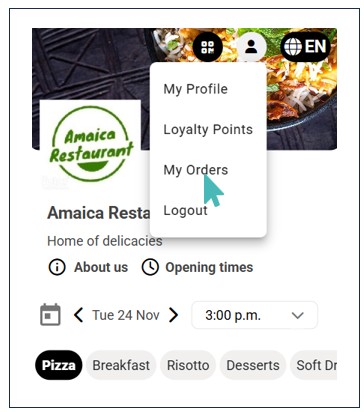
Logged-in customers can also rate their dishes from their profile:
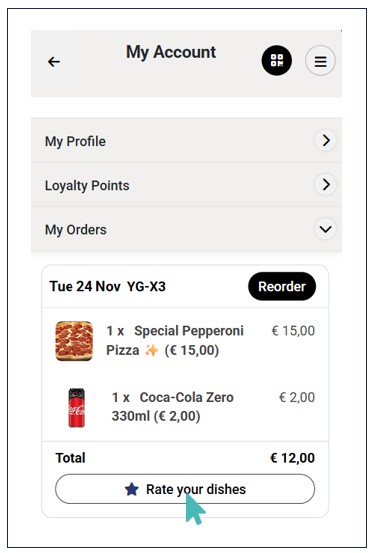
- The customer opens their profile and clicks My Orders.
- The customer clicks Rate your dishes on the order they want to rate.
- The dish rating page will appear, where the customer can complete the rating.
Note
- Guest and logged out customers can only access the dish rating page through their order confirmation email
- If an order is already rated, the Rate your dishes button is not visible in that particular order on the order history.
Submit a Dish Rating
The rating page lists all eligible dishes from the order. Each dish displays its image (if available), name, selected options or variants, and quantity.
Customers can submit their ratings by following these steps:
- Choose a star rating from 1 to 5 stars for each eligible dish.
- Optionally, enter a comment of up to 250 characters.
- Rate all eligible dishes, then submit the ratings.
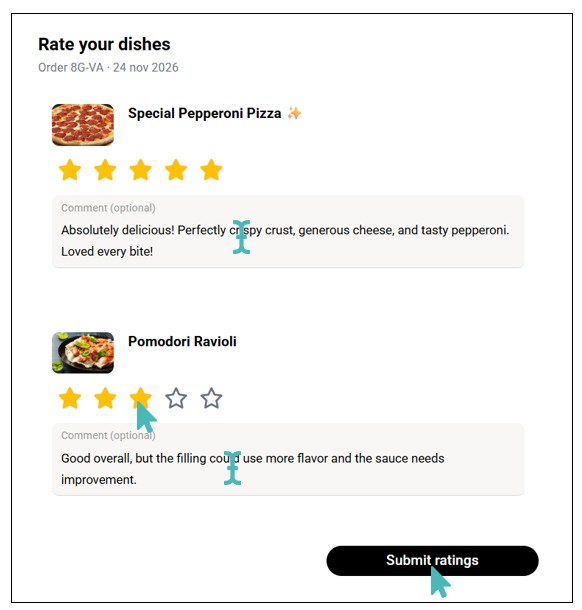
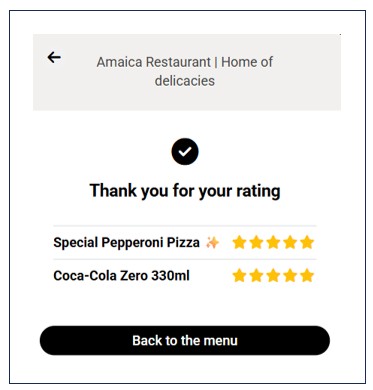
Once they click Submit ratings, their rating is sent to the Dish Ratings page on the admin panel. After submission, the page displays this confirmation message: Thank you for your rating.
Note
Customers must rate every eligible dish before they can submit their ratings. However, comments are optional.
Important Rating Rules
Here are some key rules you should know about dish rating:
- Customers have 14 days from the order submission date to rate their dishes.
- Customers can rate each order only once. They cannot edit or delete ratings after submission.
- Customers can rate only eligible top-level order items. The ratings page displays variants, options, and extras under their main dish, but customers cannot rate them separately.
- Each Combo receives one rating, not separate ratings for its individual components.
- If the same product appears on separate order lines with different options or variants, customers can rate each line separately.
- Customers cannot rate orders with any of these statuses: Draft, Cancelled, Rejected, or Deleted.
- If the same item appears multiple times on one order line, customers give that line one rating.
After the 14-day period ends, the rating page displays this message: The rating period for this order has ended.
Exclude Items from Dish Rating
You can exclude individual items or items under specific categories from dish rating. This helps prevent customers from rating them. Therefore, if an order contains one item that is excluded from rating and another item is eligible, only the eligible ones can be rated.
To exclude a category or individual item, follow these steps:
- Go to Catalog on your store and open the category you want to exclude from dish rating.
- Find the Exclude from Dish Rating setting on the Category or Item details page and switch the toggle to Yes.
- Lastly, Save your changes.
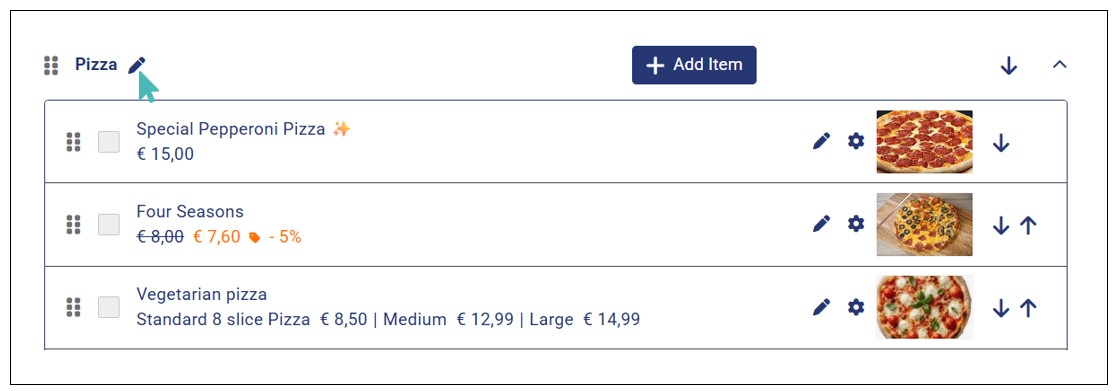
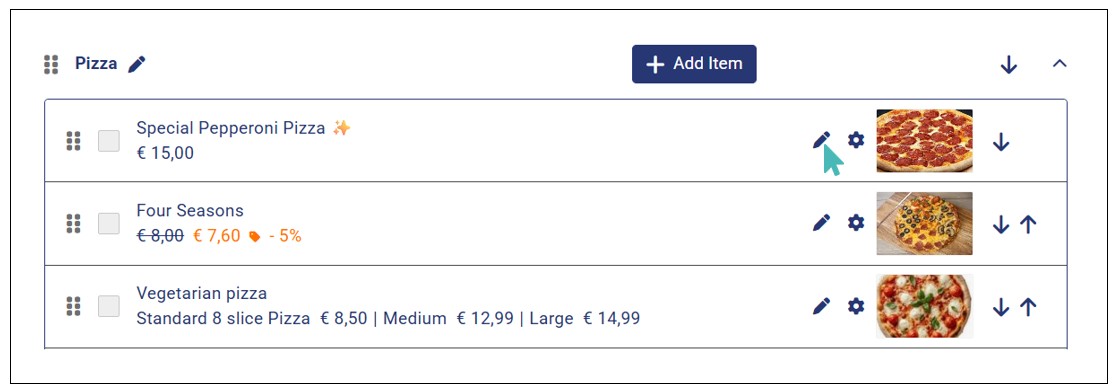
If you wish to exclude an individual item, find the item and click the edit icon.
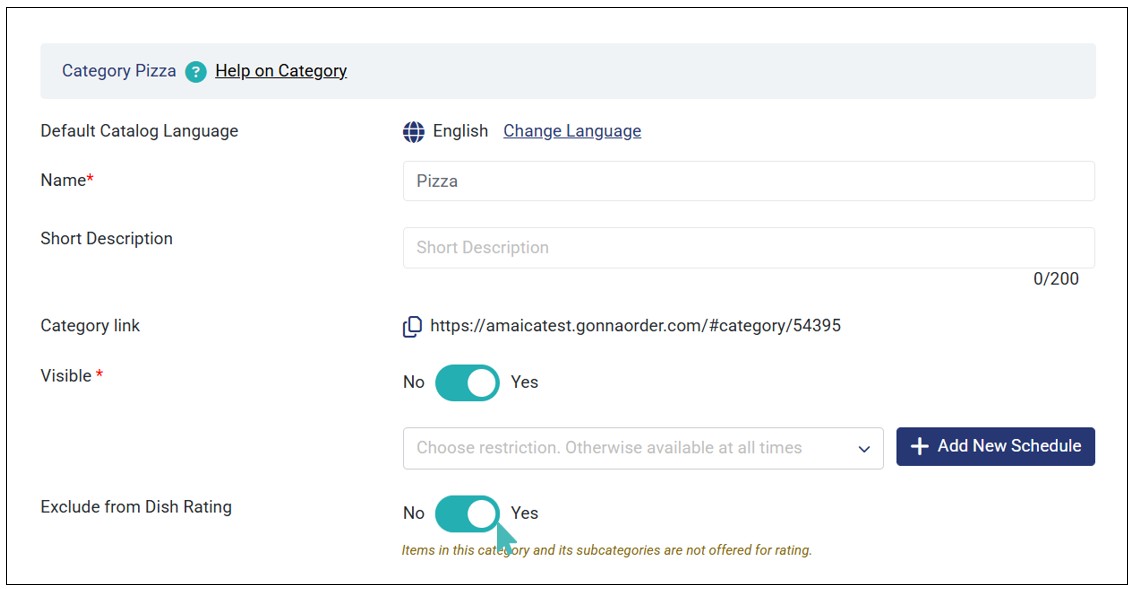
You can find the Exclude from Dish Rating setting at every category and item level, but it appears only when you Enable Dish Rating. By default, the setting is set to No.
Note
When you exclude a parent category, GonnaOrder also excludes all its items. This change affects future ratings only. It does not remove ratings that customers have already submitted.
Items That Customers Cannot Rate
GonnaOrder automatically excludes certain order items from dish rating. These include:
- Ordering-rule rewards.
- Gift cards and gift card variants.
GonnaOrder also excludes order-level charges such as delivery fees, service charges, tips, transaction fees, and vouchers. These charges do not appear as individual dishes on the rating page.
View Dish Ratings in the Admin
You and other authorized store users can review customer feedback and dish ratings in the store admin dashboard.
To view dish ratings:
- Select the relevant store.
- Find Dish ratings in the side menu, directly below Orders.
- Open the page to review customer ratings and comments.
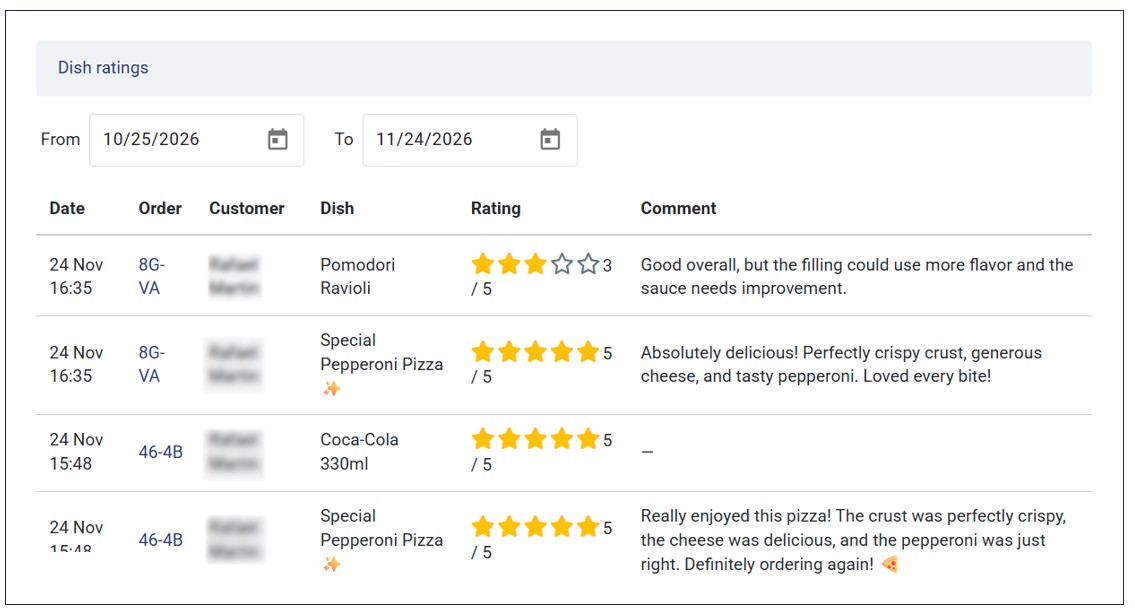
The admin dashboard displays the Dish ratings menu option only when you enable the Dish Rating feature.
Filter Ratings by Date
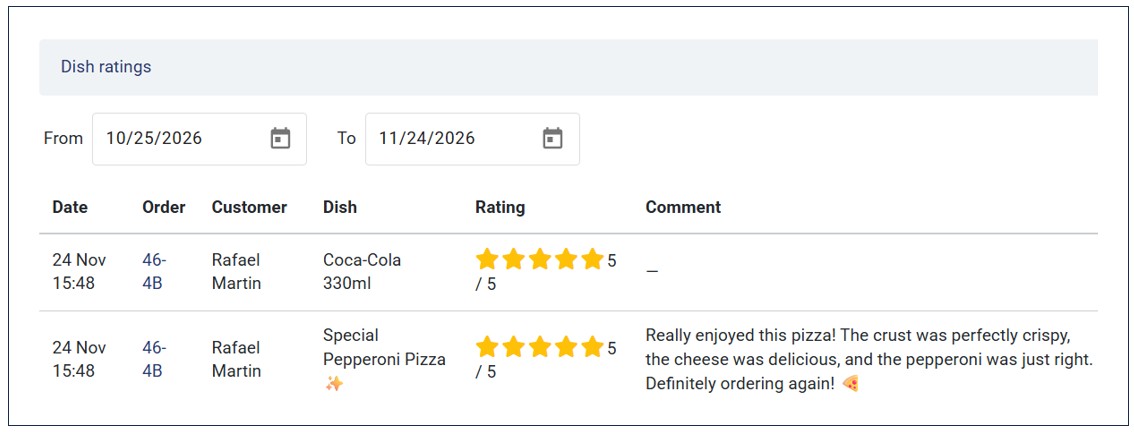
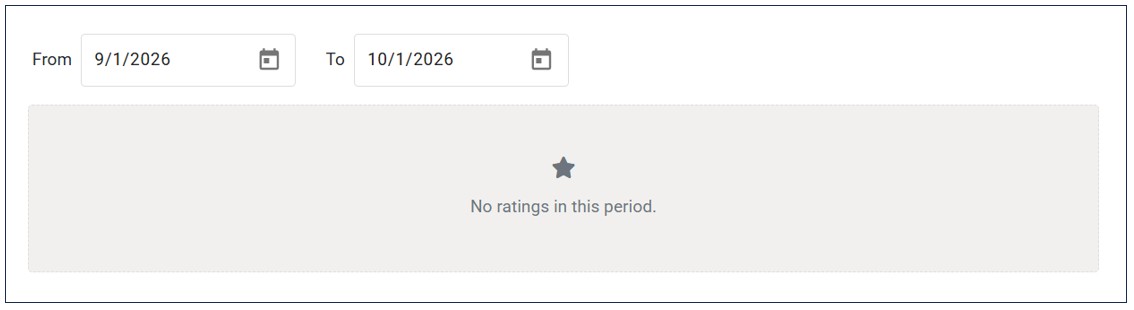
The ratings page shows feedback and ratings from the last 30 days by default. Use the From and To filters to view ratings from a different date range.
Information in the Ratings List
The ratings list includes the following details:
- Date: The date and time the customer submitted the rating.
- Order: The order number. Click it to open the order details.
- Customer: The customer’s name or email address. If the system cannot identify the customer, it displays Guest.
- Dish: The name of the rated dish, including its selected options or variants.
- Rating: The number of stars the customer selected.
- Comment: The customer’s written feedback. If the customer did not leave a comment, the list displays an em dash (—).
If no ratings match your selected date range, the page displays: No ratings in this period.
Frequently Asked Questions
Can customers rate an order more than once?
No. Customers can submit ratings for an order only once. They cannot edit or delete their ratings after submission.
How long do customers have to rate their dishes?
Customers have 14 days from the order submission date to rate their dishes.
Can guest customers rate their dishes?
Yes. Guest customers can use the link in their order confirmation email. Only logged-in customers can access their orders through the My Orders section.
Can other customers see dish ratings?
No. Dish ratings and comments remain private. Only your store can view them in the admin dashboard.
What happens when I disable Dish Rating?
When you turn off Dish Rating, customers can no longer access the rating option. Your store also hides the Dish ratings menu option and the category exclusion setting.
However, you can see all existing ratings. If you enable the feature again, you can view those ratings in the admin dashboard.
Customers may still have links to the rating page in emails you sent earlier. However, if you disable the feature, those links display this message: Rating is not available for this order.
Can customers rate dishes ordered through a kiosk?
No. Dish Rating does not currently support kiosk orders.