Make it easy for customers to discover better products while placing their orders. With Upsells, you can suggest a more valuable product when a customer opens an item in your store. For example, when a customer selects a Standard Burger, you can suggest upgrading to a Classic Burger for just €3 more. Customers can accept the suggestion with one tap or continue with their original selection.
Note
Use Upsells to increase order value by encouraging customers to choose premium (higher-value) products, larger portions, menus, or combos.
On This Page
- What is an Upsell?
- How Upsells Work
- Set Up Upsells for Your Items
- Manage Existing Upsells
- Upsells in Multi-Stores with Inherited Catalogs
- Tips for Using Upsells Effectively
- Frequently Asked Questions (FAQs)
What is an Upsell?
An upsell is a sales technique that encourages customers to purchase a more valuable or upgraded version of the product they are already considering. For instance, instead of simply purchasing a regular burger, a customer can upgrade to a bacon cheeseburger for a small additional cost. The goal is to offer customers more value while increasing the average order value for your business.
With the Upsells feature, you can connect two different products in your catalog and automatically suggest the more premium alternative when customers open the original product.
How Upsells Work
An upsell connects an existing menu item to another, more expensive product in your catalog. When a customer opens the original product, they see a suggestion highlighting the upgraded alternative and its additional cost.
The suggestion includes:
- Product image: Helps customers see what they are upgrading to.
- Upgrade message: Highlights the suggested product and how much extra it costs.
- Price comparison: Shows the upgraded price alongside the original product’s price.
- Upgrade button: Allows customers to switch to the suggested product with one tap.
For example, a customer viewing a Regular Cheeseburger priced at €11.99 might see:
Upgrade to Bacon Cheeseburger Menu for only €2.00 more
€13.99 instead of €11.99
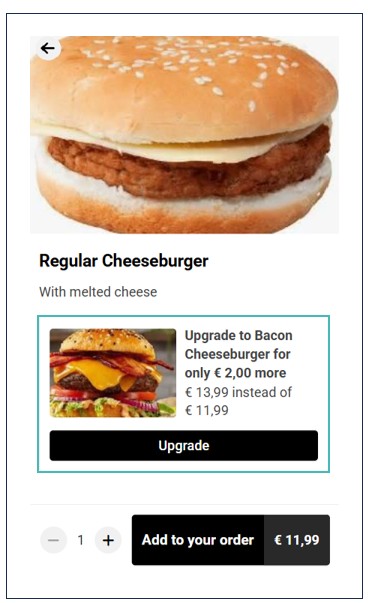
When customers click Upgrade, they are taken to the suggested item’s page, where they can review its details, make selections, and add it to their order.
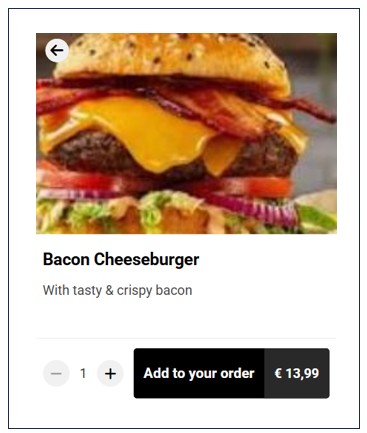
Customers can also ignore the suggestion and continue ordering the original item as usual.
Note
A customer can proceed with the original item or click Upgrade to add the higher value item to cart.
Set Up Upsells for Your Items
You can create and manage upsells from the Marketing section. Here are the steps to follow to create an upsell:
- Navigate to Marketing > Upsells.
- Find the Enable upsells setting and switch the toggle to Yes to activate the feature.
- Next, click Add upsell to create an Upsell.
- Choose the following details about the upsell:
- Product: select the original product you want to promote an upgrade from.
- Upsell to: choose the more expensive product you want to recommend.
- Customer pays: Check this field to see the additional amount the customer will pay for the upgrade.
- Set Active to Yes to make the upsell available to customers.
- Lastly, click Save to add the upsell.
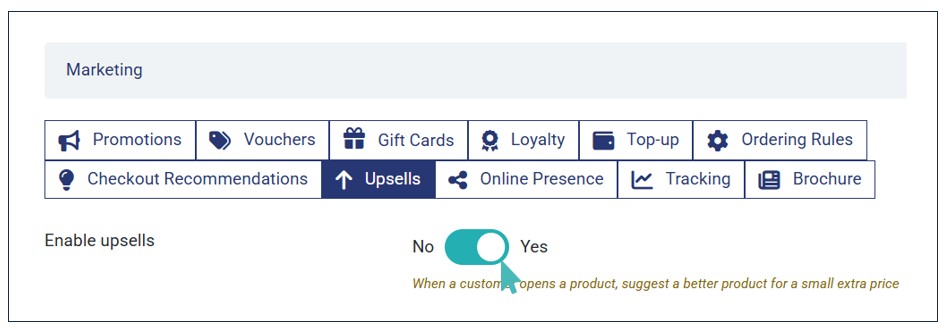
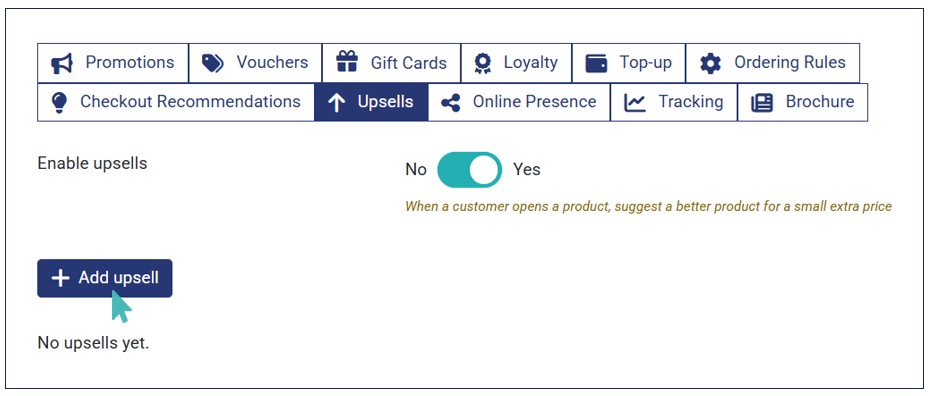
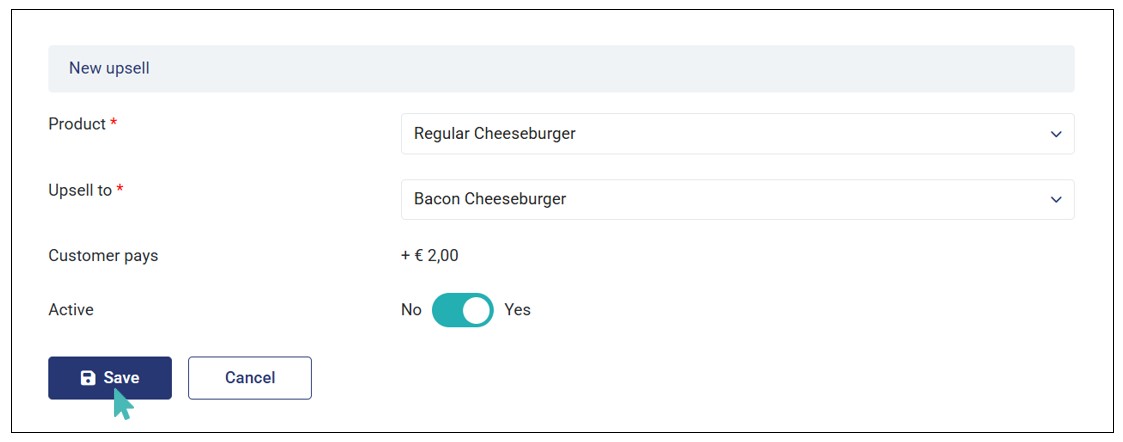
Your upsell is now configured. Therefore, customers can see active upsell suggestions on eligible items.
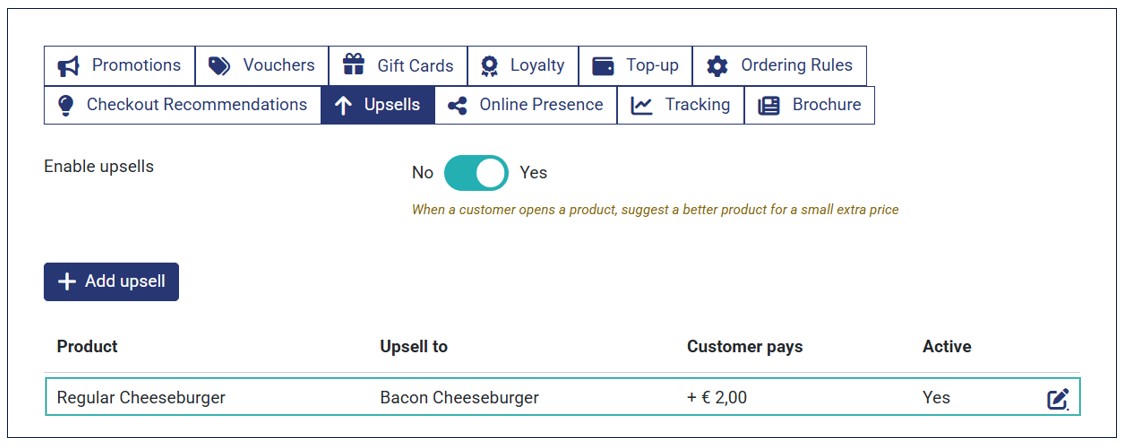
Based on the upsell in the above screenshot, when a customer clicks the Regular Cheeseburger on the menu, they will see an option to upgrade their order to include Bacon Cheeseburger instead.
Note
You can only configure one upsell per item in your store.
Manage Existing Upsells
The Upsells page displays your configured upsells in a table with the following information:
- Product: The original product customers select.
- Upsell to: The suggested upgraded product.
- Customer pays: The additional amount customers pay to upgrade.
- Active: Indicates whether the upsell is enabled.
- Edit: Allows you to update or delete an existing upsell.
You can edit an upsell to change its products or activation status. You can also delete an upsell if you no longer want to offer it. Simply click the edit icon on the upsell you would like to update.
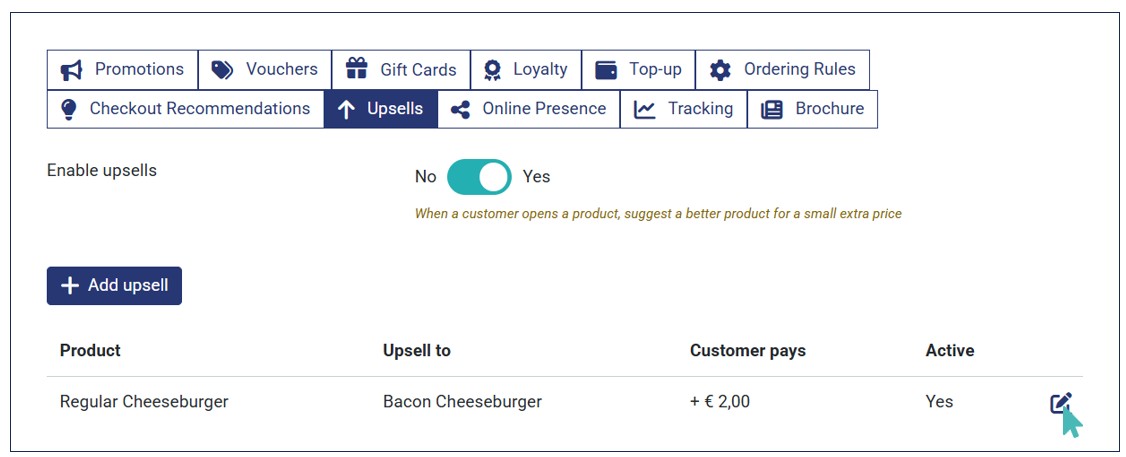
Make the necessary updates and Save or click the Delete button to remove an upsell from your store.
Upsells in Multi-Stores with Inherited Catalogs
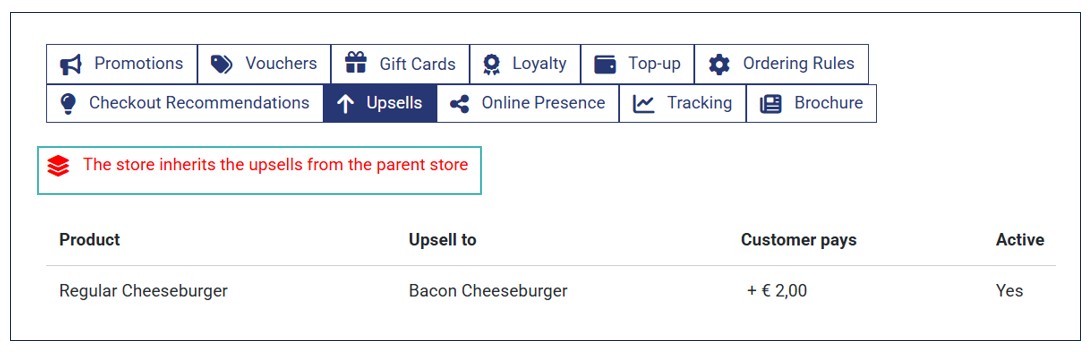
If your store inherits its catalog from a parent store, it also inherits the parent’s upsell settings and configurations. In this case, upsells are displayed as read-only. Therefore, you cannot create, edit, or delete them from the child store. Here is how the Upsells page will look like when a store inherits catalog from the parent.
Tips for Using Upsells Effectively
To ensure your upsells work as expected, consider the following tips:
- Promote meal upgrades: Suggest a complete meal or combo instead of an individual food item.
- Encourage premium choices: Recommend a more premium product, such as a specialty burger instead of a regular burger.
- Offer bigger portions: Link a smaller product to a more substantial alternative available as a separate catalog product.
- Keep price differences attractive: Choose upgrades that offer customers clear additional value for a reasonable extra cost.
Frequently Asked Questions (FAQs)
Can customers still order the original product without upgrading?
Yes. Customers can ignore the upsell suggestion and continue configuring and ordering the original product as usual.
What happens when a customer clicks Upgrade?
The customer is taken to the suggested product’s page. They can review its details, select available options, and add it to their order. The original product is not automatically added to the basket.
What happens if the upsell item is unavailable/ out of stock?
Upsells depend on item availability. An upsell is displayed only when the suggested product is available for ordering. If the product is out of stock, unavailable, outside its scheduled availability, or no longer sellable, customers will not see the suggestion.
Can I suggest multiple upgrades for one product?
No. Each product can have only one configured upsell.
Can I upsell a product to one of its price variants?
No. Upsells connect two different catalog products. Suggesting a different size or price variant of the same product is not supported.
Does the additional price stay the same if product prices change?
No. The additional amount is calculated automatically using the current effective prices of both products. This ensures customers always see the correct price difference.
What happens if I deactivate/delete an upsell?
The suggestion will no longer appear on the original product’s page. Customers will continue ordering that product as they normally would.