GonnaOrder helps build customer loyalty with two key features. First, you can create a new user discount to encourage first-time customers to make a purchase. Secondly, you can create a loyalty scheme that awards points based on the items bought. Each item is associated with specific loyalty points and the points are redeemed as discount on future orders when the customer reaches the target.
On This Page
- Create New User Discount
- Activate New User Discount
- Deactivate or Delete New User Discount
- Enable the Loyalty Scheme
- How the Loyalty Scheme Works
- Configure Loyalty Rules
- Delete the Loyalty Scheme
Create New User Discount
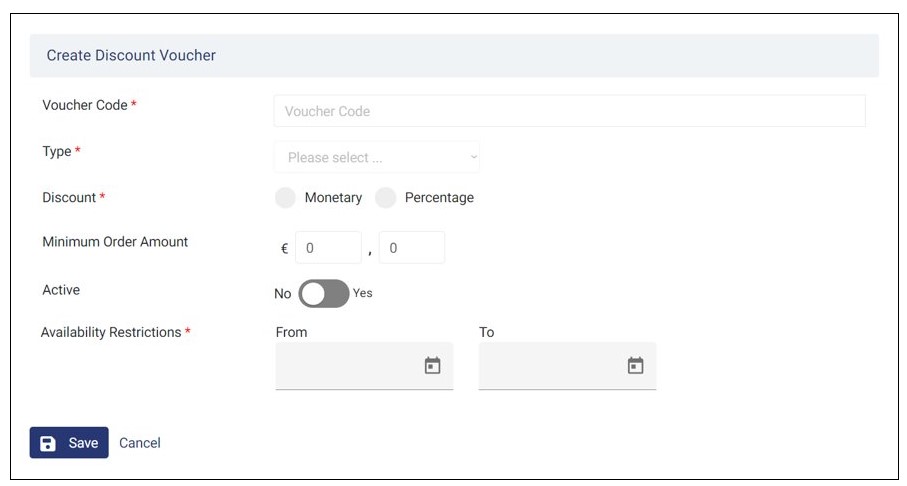
You can create a new user discount for the customers. To create a new user discount voucher, navigate Marketing > Vouchers and click Create Discount Voucher.
For more information on how to add new discounts, refer to the Manage Discount Vouchers article.
Tip
If you have vouchers created earlier, select the voucher you would like to offer as a new user discount from the dropdown list.

Enter the following details in the Create Discount Voucher page.
- Voucher Code
- Type
- Discount
- Minimum Order Amount
- Availability Restrictions
Click Save once the details are entered.
Activate New User Discount
Gaining new customers can be challenging, especially in today’s highly competitive business environment. And that’s where the New User Discount feature comes in handy. As a store operator, you can activate the new user discount voucher to encourage new customers to buy from your store.
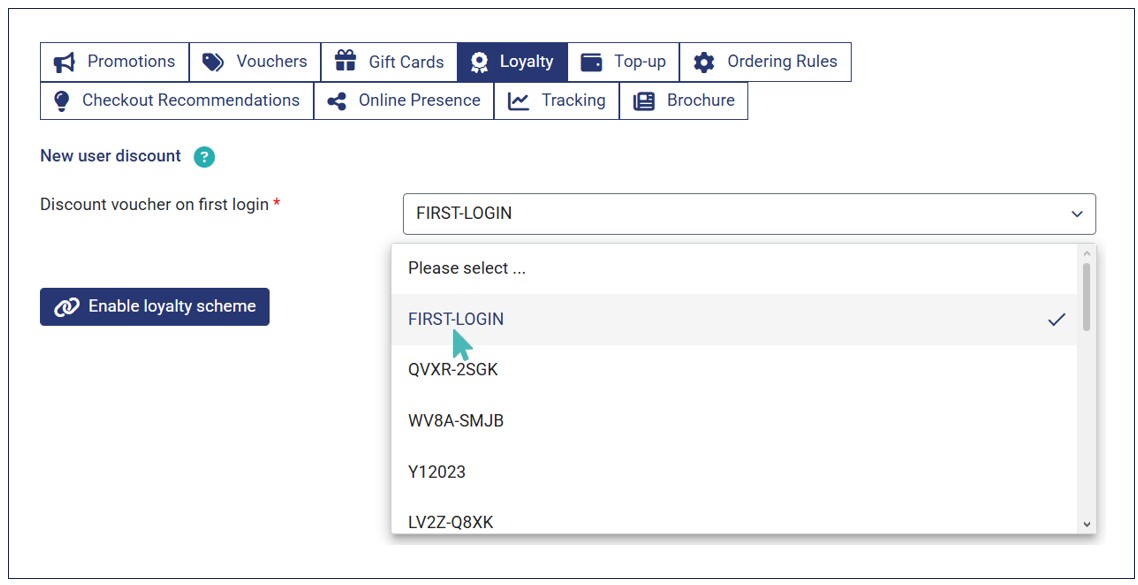
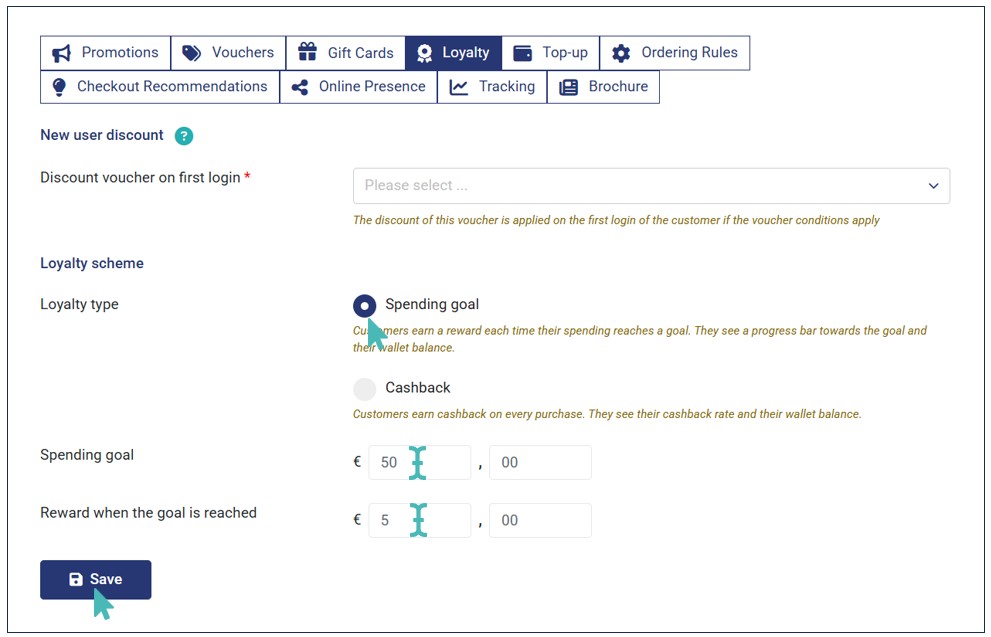
To enable a new user discount, navigate to Marketing on the side menu and click the Loyalty tab.
Next, select the desired voucher from the Discount voucher on first login dropdown.
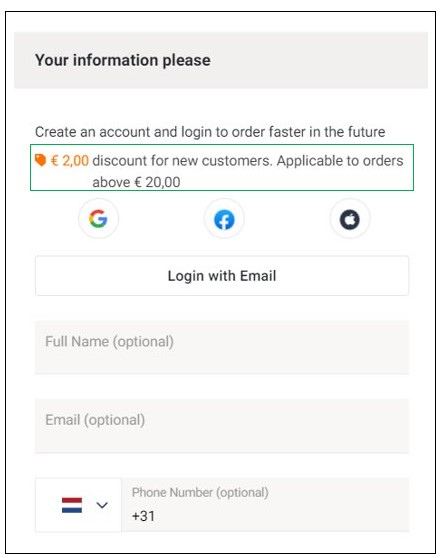
When you set this discount voucher, customers will be able to view it before they login. They will see the value of the voucher and the minimum order requirements.
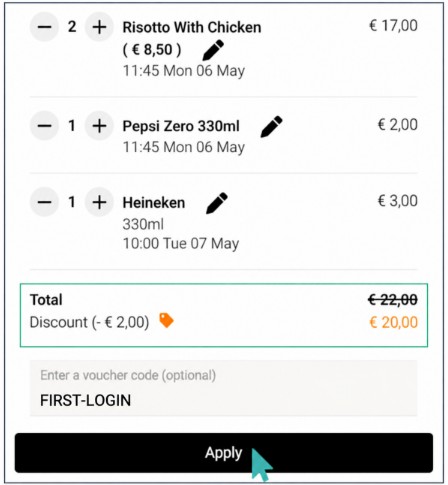
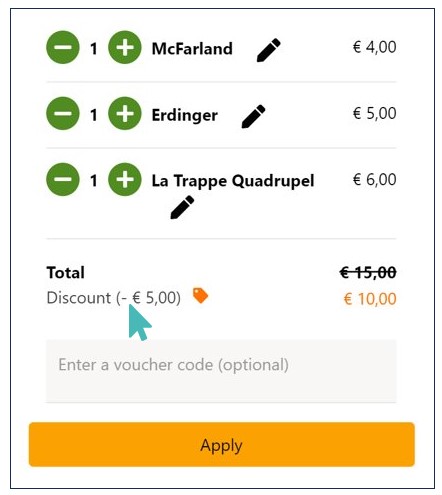
When the customer’s first order reaches or exceeds the minimum order requirement, the discount can be applied by clicking the Apply button.
Deactivate New User Discount
You can change or deactivate a discount voucher when you do not want to offer it to customers. To deactivate the new user discount, go to Marketing > Loyalty .
Next, choose the Please select… option from the Discount voucher on first login dropdown.

Enable the Loyalty Scheme
As a store or restaurant owner, you can quickly activate the customer loyalty scheme to encourage customers to repeatedly buy from your store. Here are the steps to follow to enable the loyalty scheme
- Navigate to Marketing > Loyalty and click Enable loyalty scheme.
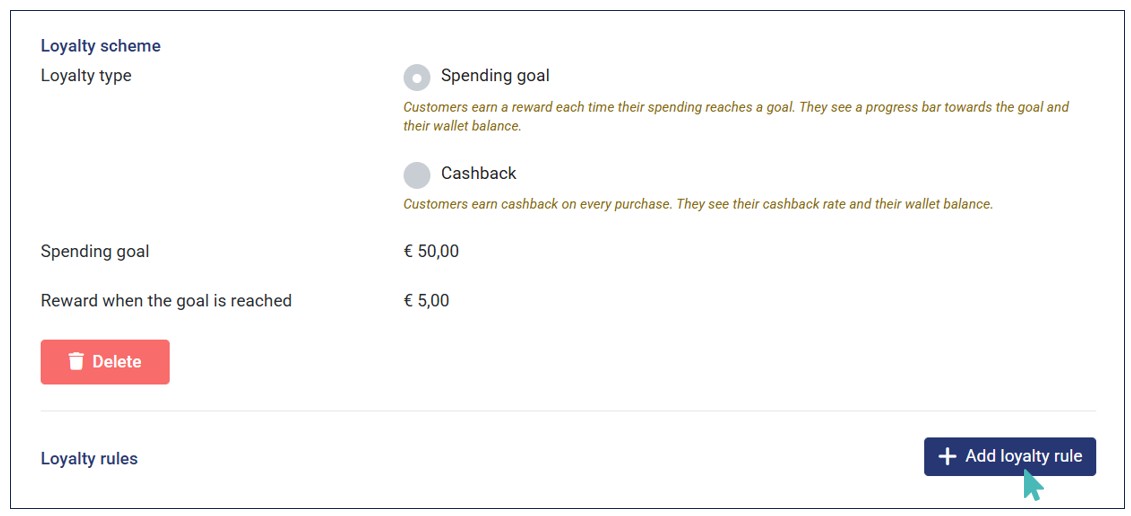
- Select the desired Loyalty type, depending on the goal of your loyalty scheme and click Save. Here are the options available:
- Spending goal. This option allows customers to earn a reward each time their spending reaches the set goal. They see a progress bar towards the goal and their wallet balance.
- Cashback. This option lets customers earn cashback on every purchase. They see their cashback rate and their wallet balance (if logged in).
- If you choose Spending goal as the Loyalty type, enter the Spending goal as the target amount and Reward when the goal is reached as the amount to be rewarded for spending the target amount.
- On the other hand, if you choose Cashback as the Loyalty type, enter the Amount spent as the target amount and Cashback amount on the respective fields.

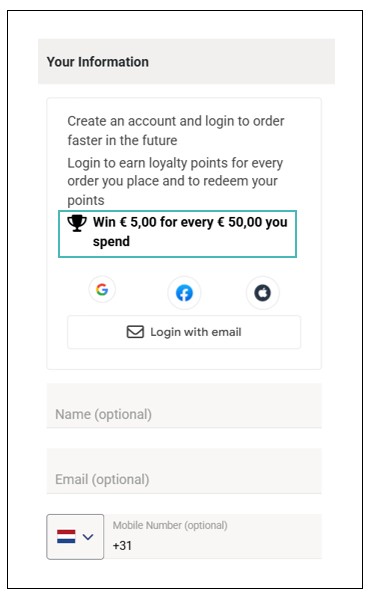
When you create a spending goal loyalty scheme, customers will see the amount they need to spend to receive the reward.
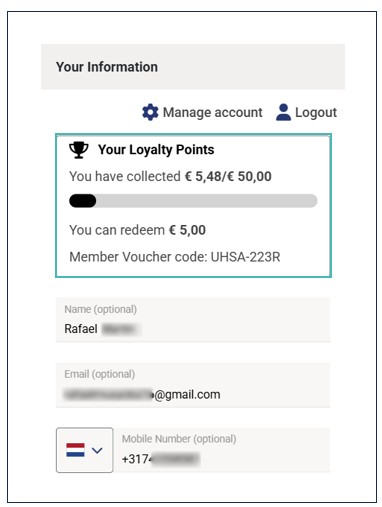
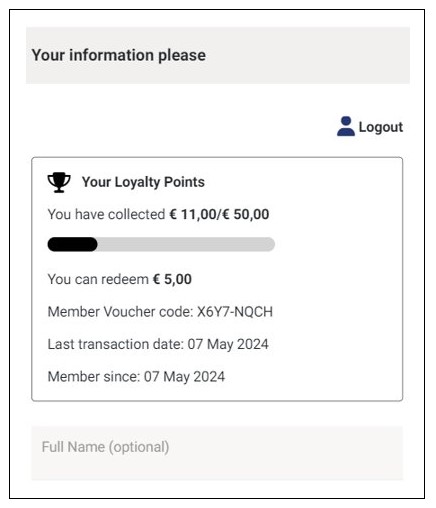
Also, if the customer is logged in, they will see the loyalty points collected so far in a progress bar and the redeemable rewards as shown below.
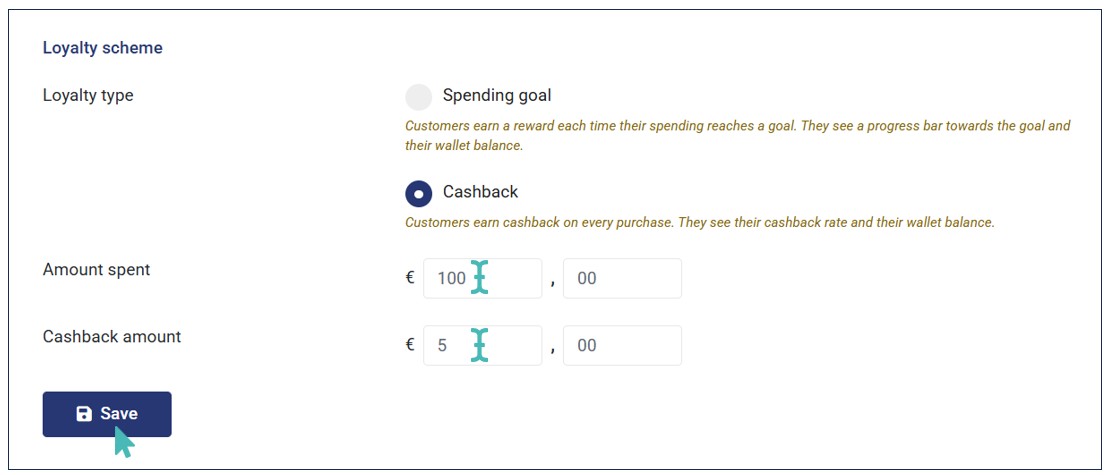
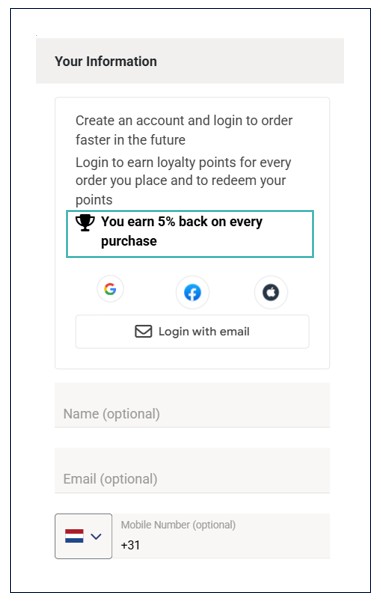
When set, customers will see a percentage cashback that they will be rewarded for every purchase.
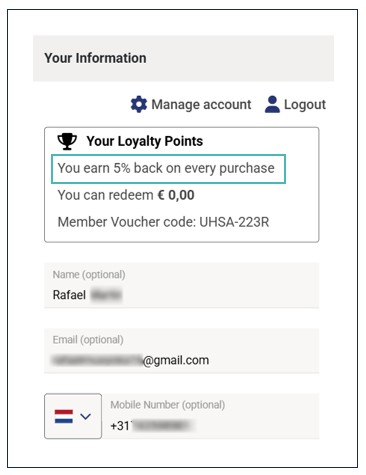
If the customer is logged in, they will also view how much cashback reward they receive on every purchase.
How the Loyalty Scheme Works
The loyalty scheme allows customers to win loyalty points every time they buy items in your store. When a customer places an order on the store’s website, they’re able to see if the store offers loyalty points even before they login or submit the order. Here are the steps to follow to earn loyalty points from a store:
First, select the items you want to buy from the menu and click Proceed.
Scroll down to the Your information please section to check whether the store offers loyalty points.
Let’s assume your store offers 5 Euros for every 50 points collected.
Note
The example used in this section is the Spending goal loyalty type.
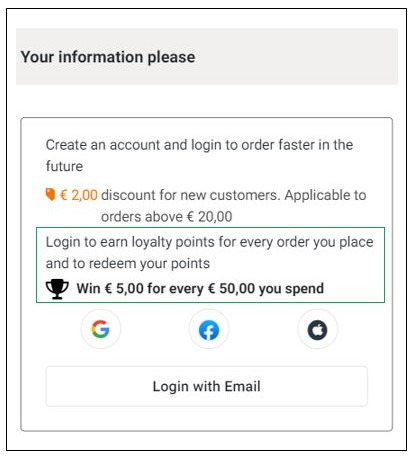
For first-time customers, they need to create an account using their social accounts (Google, Facebook, or Apple) or login with email. You will get a prompt notifying you that “You don’t have any loyalty points yet. Place your first order to start collecting!”
Assume you collect 16 points on your first order. At this point, you haven’t reached the target points (50) required to earn a reward. Therefore, the amount you can redeem will be € 0.00.
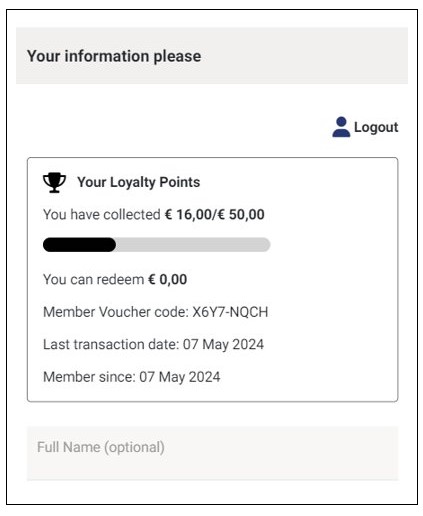
The loyalty points accumulate for every order placed until you reach the target points. When the target is reached, you will earn the set reward, which will be automatically redeemed and deducted from the next order as a discount. Any points above the target points will start accumulating again.
If the customer collect 45 points on the next order (after collecting 16 points), they will have accumulated 61 points, which is more than the target points (50). This means that you will have earned a reward of € 5. The new balance points will be 11, which obtained by subtracting target points (50) from the accumulated points (61).
Notes
- Store owners are responsible for setting how loyalty points are calculated for each product. A store item’s loyalty points can be based on one of the following criteria.
Use price as points
Multiply price by a factor
Assign fixed points
Exclude from earning points
See more on setting how product loyalty points are calculated.
- Apart from customers earning loyalty points from their orders, the store admin can manually add, reduce, or edit customer loyalty points when necessary. See how the Update Customer Loyalty Points feature works.
Configure Loyalty Rules
Loyalty Rules let you create targeted campaigns that give customers bonus or multiplied loyalty points during specific periods, for specific products, categories, or order amounts. Instead of changing loyalty settings manually for individual products, you can create rules that automatically apply when specific conditions are met.
Create a Loyalty Rule
Before you create a loyalty rule, you must enable the loyalty scheme on your store. Therefore, if you have not set up a loyalty scheme, this section will not be available.
1. Open the Loyalty Rules Section
Go to Marketing >Loyalty and find the Loyalty rules section.
Click Add loyalty rule to create a new rule.
2. Set the Rule Details
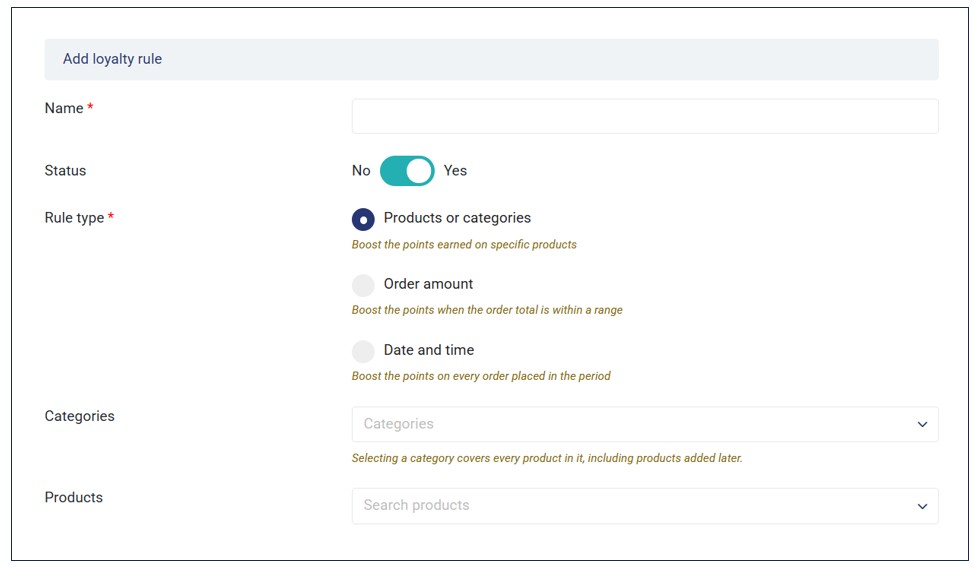
Enter the relevant rule details and save. Here, you set provide the following:
- Name. Enter the name of your loyalty rule. Use a relatable name so that it is easier for everyone.
- Status. Switch the toggle to activate or deactivate the loyalty rule.
- Rule type. This section allows you to choose the type of loyalty rules you would like to configure based on Product or categories, Order amount, or Date and time.
- Reward. Here, you can choose what kind of loyalty points you would like to offer if the rule conditions are met. It can be Multiply points by a set factor or Add points by a certain number.
- Period. Set the date range period within which the loyalty rule should run.
- Schedule. This allows you to plan a loyalty rule to run within a specific store schedule.
Here is a more detailed breakdown of what each action involves:
3. Choose What the Rule Applies To
Here, you select the conditions under which customers should receive the additional points. You can apply a rule to:
- Specific Products or Categories. This option allows you to select one or more products or categories that the loyalty rule applies to. This implies that only the selected products or those that fall under the selected category will qualify for the bonus points. For example, you can set double points on the Pizza category. In this case, items in the Pizza category will accumulate 2X the loyalty points.
- Order Amount. This rule type allows you to set the minimum amount that an order must have to qualify for the bonus loyalty points. For example, you can set a rule that adds 10 points to all orders above €50. Also, you can optionally set the maximum order amount for the rule to apply.
- Date and Time. This option applies the loyalty rule to the entire order during the selected period and/or schedule. For example, you can create a rule that applies on Thursdays between 11 am and 2 pm with the campaign running between the selected period (e.g., 1st September to 30th September).
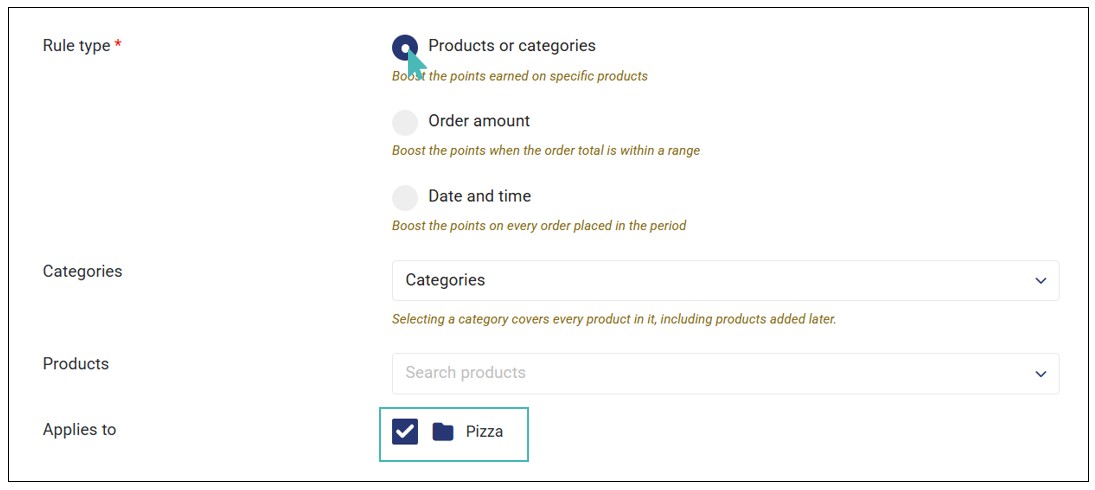
Tip
Use the Products or Categories rule type when you intend to promote specific items or categories in your store.
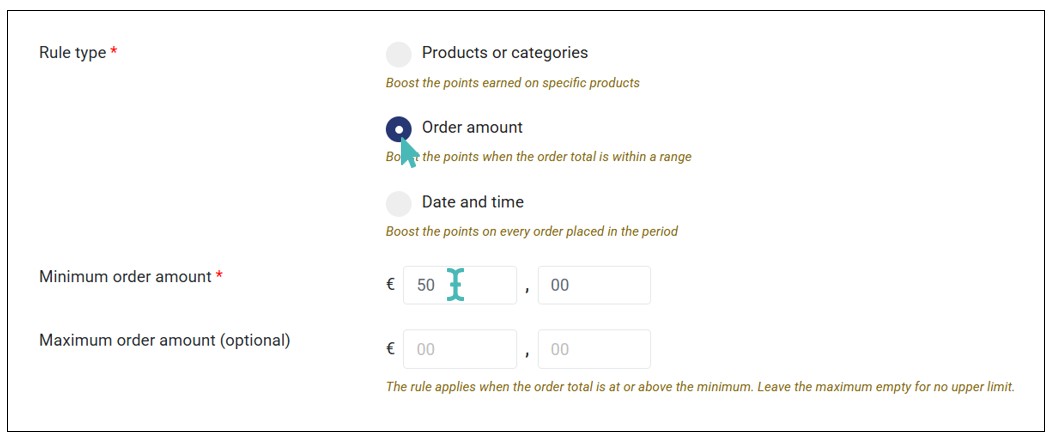
Tip
Use the Order amount rule when you intend to promote higher value orders in your store.
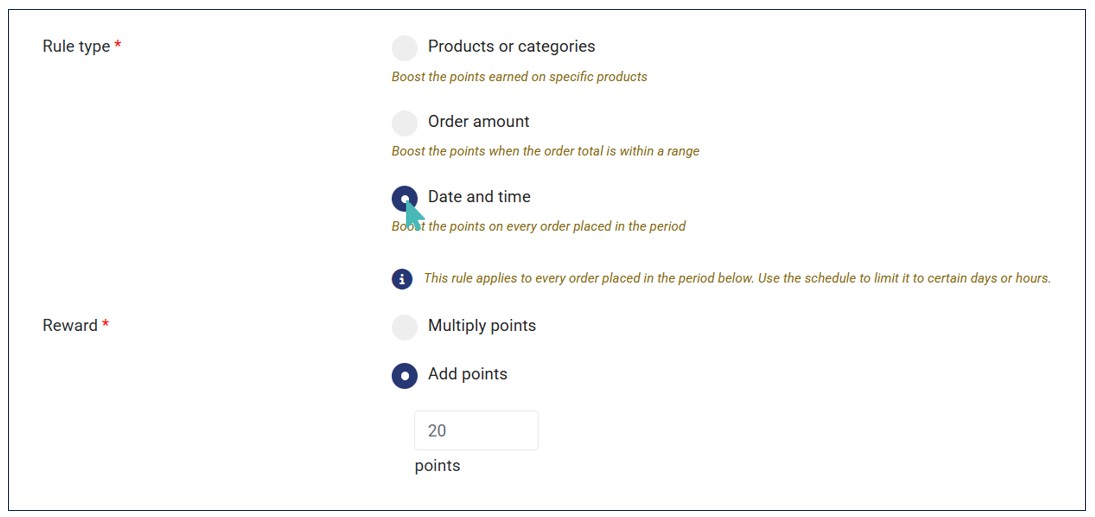
Tip
Use the Date and time rule when you intend to boost sales during a specific period (e.g., Happy hour or off-peak hours).
4. Choose the Points Reward Mechanism
Select how the loyalty reward should be calculated.
- Multiply points. This option increases the customer’s normal points by a multiplier. For example, if a customer should earn 10 points, a 2X rule would give them 20 points.
- Add Points. This option allows you to add a fixed number of points to the customer’s loyalty points for the order. For example, if you set it to 10 points, a customer earns 10 additional points for every order that meets the rule’s requirements.
Loyalty Reward Options 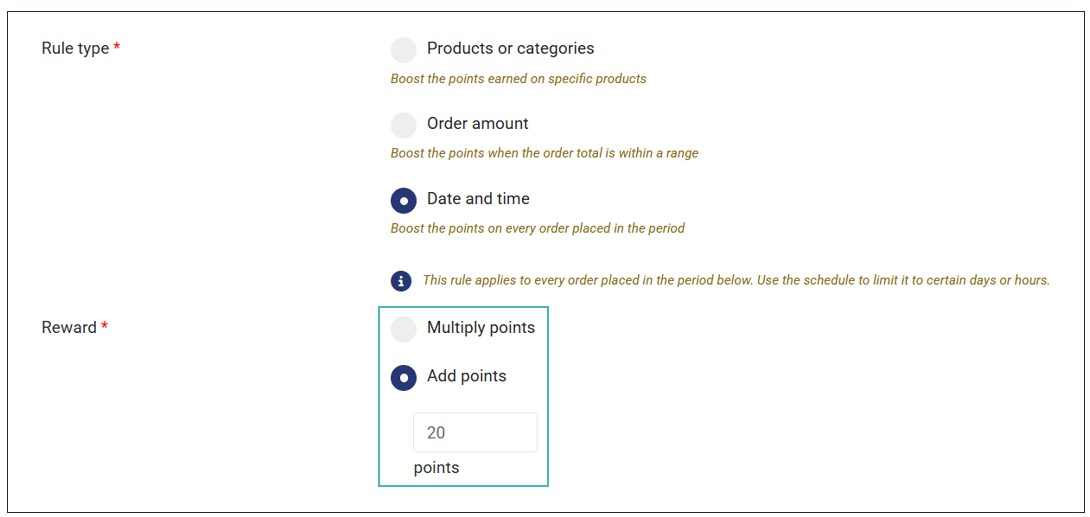
5. Select the Period and Schedule
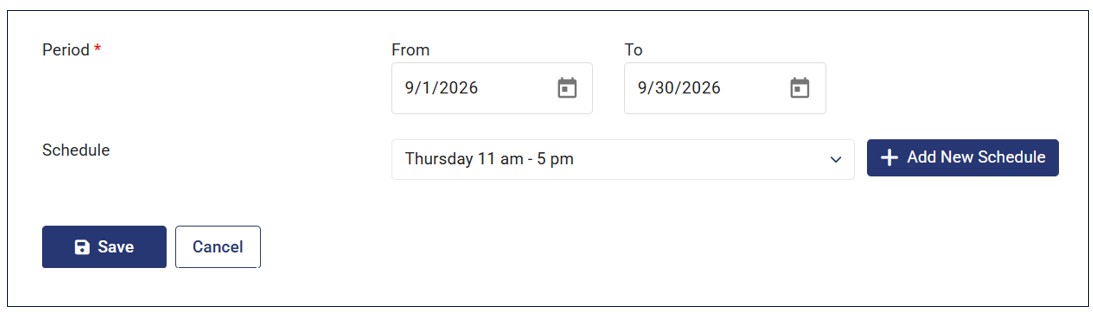
You can restrict the rules availability by period and schedule (optional). This implies that you can schedule when the loyalty rule/ campaign runs.
- Period (Mandatory). This allows you to set the Start and End date of the loyalty campaign (e.g., 01/09/2026 – 30/09/2026).
- Schedule (Optional). With a schedule, you can set when the loyalty rule should apply – to the hour. You can choose an existing rule or Add New Schedule if none meets you desired needs. For instance, if you have a Thursday schedule which only applies from 11:00 am – 5:00 pm, the loyalty rule will only apply for orders with that particular wish date and time (Thursday from 11 am – 5 pm). If no schedule is selected, the loyalty rule will apply for orders throughout the entire selected period. Learn more about Schedules.
6. Save the Rule
Review the rule settings and click Save. The system checks the new rule against existing rules before saving it. If the rule conflicts with another rule, it cannot be saved. The system identifies the rule causing the conflict so you can adjust the conditions or schedule. Here is the error toast displayed if the conditions of a rule conflict with another existing rule: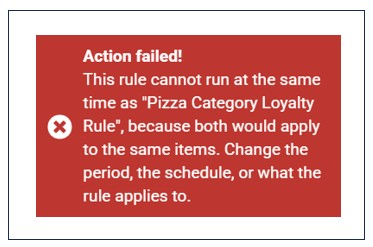
Example: Create a Double Points Campaign
Suppose you want customers to earn double points when purchasing Pizzas between 17th and 30th September. Set up the rule as follows:
| Setting | Example |
| Name | Pizza Category Loyalty Rule |
| Rule Type | Products or categories |
| Categories | Pizza |
| Reward | Multiply points – factor 2 |
| Period | From: 17/09/2026, To: 30/09/2026 |
| Schedule | All the time |
Once saved, customers automatically receive double points when the rule conditions are met.
View and Update a Loyalty Rule
You can view and edit the loyalty rules in your store. These rules are available on the Loyalty rules section under Marketing > Loyalty.
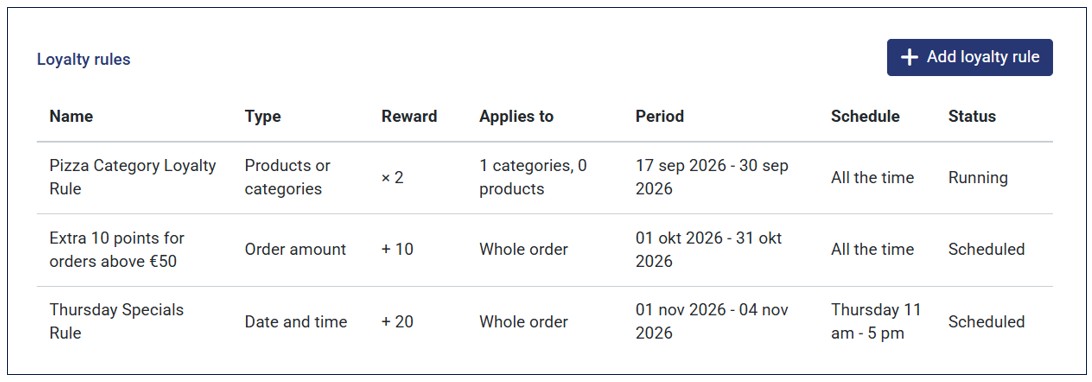
From the list, you can see the various details about the loyalty rule, including:
- Name. This is the name of the rule.
- Type. It can be Product or categories, Order amount, or Date and time.
- Reward. This field shows the multiplier or fixed points added based on the selected reward calculation mode.
- Applies to. This field shows which order items that a loyalty rule applies. For Product or categories rules, the field shows the number of products or categories affected by the rule. However, it shows Whole order for other rule types, that is Date and Time and Order amount since these two apply for the entire order.
- Period. This is the validity period (Start and end date).
- Schedule. This showcases whether a rule is restricted by a specific schedule or it is available at all times.
- Status – It can be Inactive (expired or deactivated), Running (active), or Scheduled (future-date).
Note
Inactive loyalty rules are greyed out for easy distinction.
Updating the Loyalty Rule
To update a loyalty rule, simply click the rule you would like to change from the list.
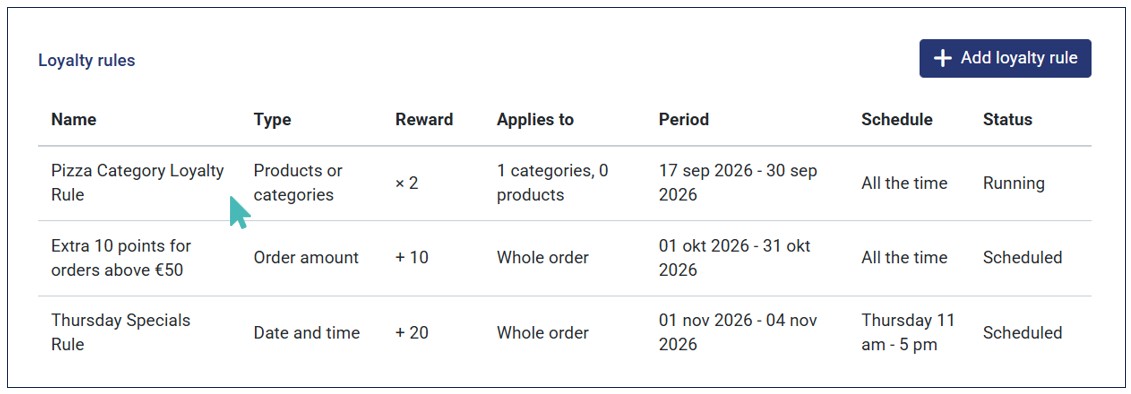
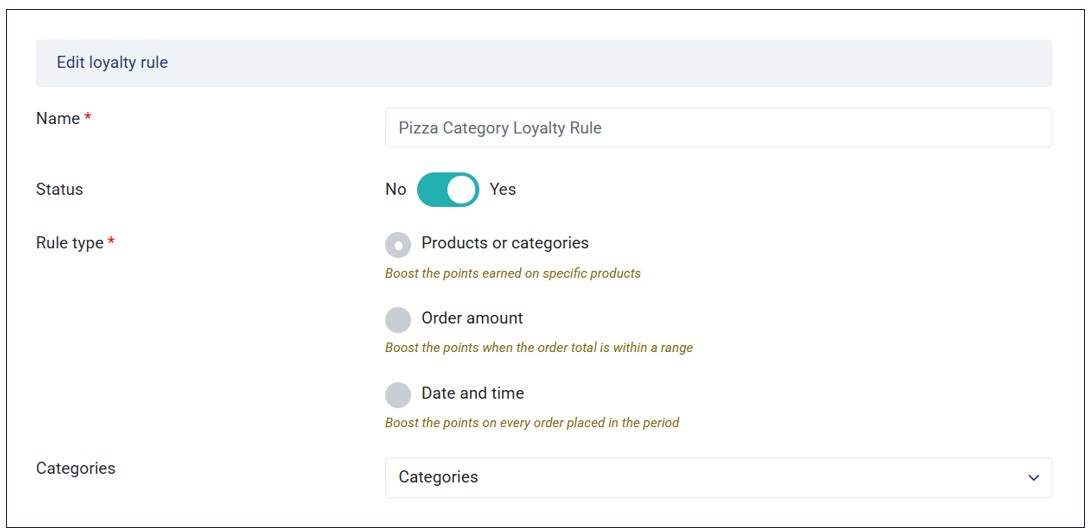
Edit the desired details and Save the changes. Note that you can edit all the rule details except the rule type.
Note
The Rule type cannot be updated once created. If you wish to change the rule type, create a new rule and delete the rule you no longer need.
Tips for Creating Loyalty Rules
Here are some tips to consider when creating loyalty rules for an effective loyalty campaign.
- Use product-specific rules to promote selected items.
- Use recurring schedules for regular campaigns.
- Use order thresholds to encourage higher-value orders.
- Use bonus points for fixed-value rewards.
- Use multipliers for campaigns such as double- or triple-points events.
- Check existing rules before creating a new campaign to avoid conflicts.
Delete the Loyalty Scheme
If you no longer want to keep the loyalty scheme, you can delete it. This means that customers will not earn loyalty points based on the amount they spend on your store.
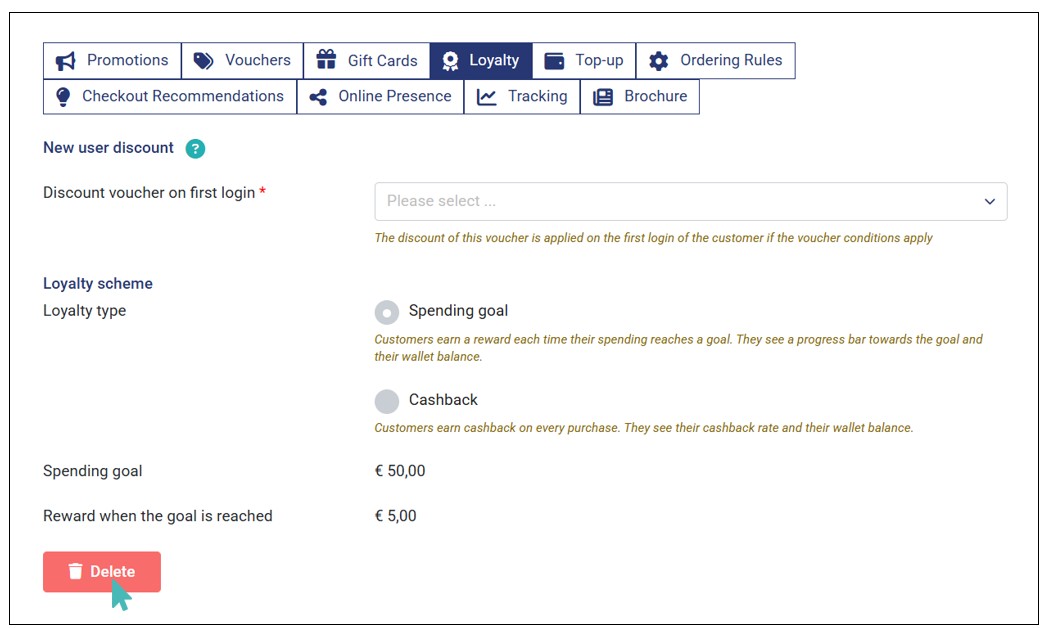
To delete your customer loyalty scheme, go to Marketing > Loyalty and click Delete. Click OK from the pop that appears to confirm the deletion.
Points to Remember
- While you cannot undo the loyalty scheme after deleting it, you can Enable the Loyalty Scheme again in the future.
- If you have linked stores, you don’t need to set up the loyalty scheme for all child stores. Instead, enable the loyalty scheme on the parent store and then activate the Inherit vouchers and loyalty from parent store feature.
- You can enable both the new user discount and loyalty scheme at the same time to attract new customers and encourage repeat business among existing ones, fostering a stronger relationship and customer loyalty.
- Your customers can login and start collecting loyalty points, regardless of the delivery mode they select (table, pickup, or delivery).