Eurobank is one of the leading banking groups in Greece, focusing on digital transformation, private/ retail/corporate banking, and asset/investment management. Connecting your GonnaOrder store with Eurobank enables you to receive online payments effortlessly via a secure hosted payment page. This ensures that your customers enjoy a smooth checkout experience.
| Website | https://www.eurobank.gr/en/group |
| Supported Payment methods | Credit and debit cards |
| Available countries | Greece |
| Payment provider logo |  |
On This Page
- Connect Your Store with Eurobank
- Receive Payments Via Eurobank Payment Page
- Deactivate or Disconnect Eurobank from Your Store
Connect Your Store with Eurobank
Here are the steps to follow to connect your store with Eurobank for online payments.
- Obtain the Eurobank integration details (that is, Merchant ID and Shared Secret) from the Eurobank support team.
- Next, login to your store and navigate to Settings on the side menu and click on the Payments settings tab.
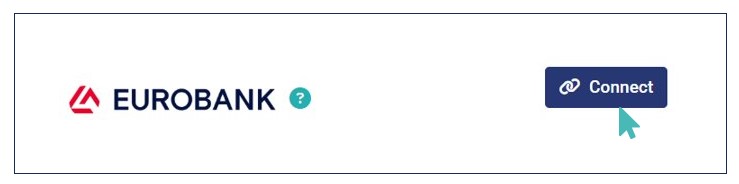
- Scroll down to find Eurobank logo and click Connect.
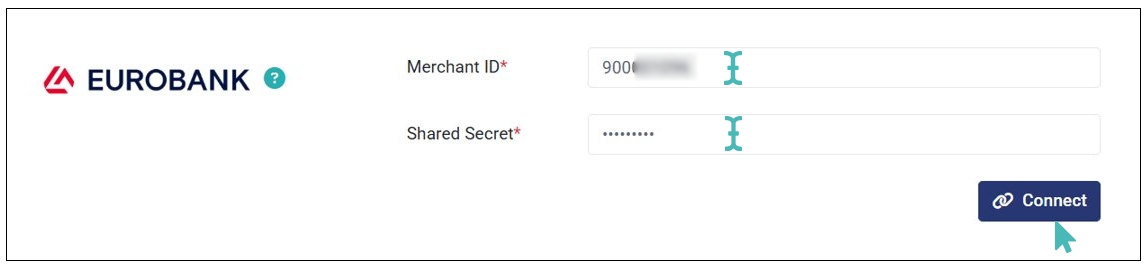
- Enter the Eurobank integration details (provided in step 1) in the respective fields and click connect.
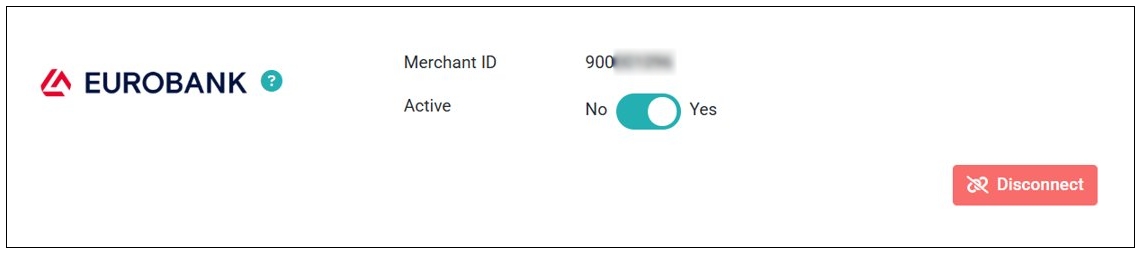
- The store is successfully connected to Eurobank. Therefore, you can start receiving payments online via a secure hosted payment page.
Note
When you connect your store with Eurobank, you must set email as a mandatory field for all delivery modes.
Receive Payments Via Eurobank Payment Page
Upon a successful integration with Eurobank, your customers can start paying for their orders online. When they click Proceed to Payment on the checkout page, they are redirected to a secure hosted payment page, where they can enter their card details to complete the payment. Here is how the payment page looks like.
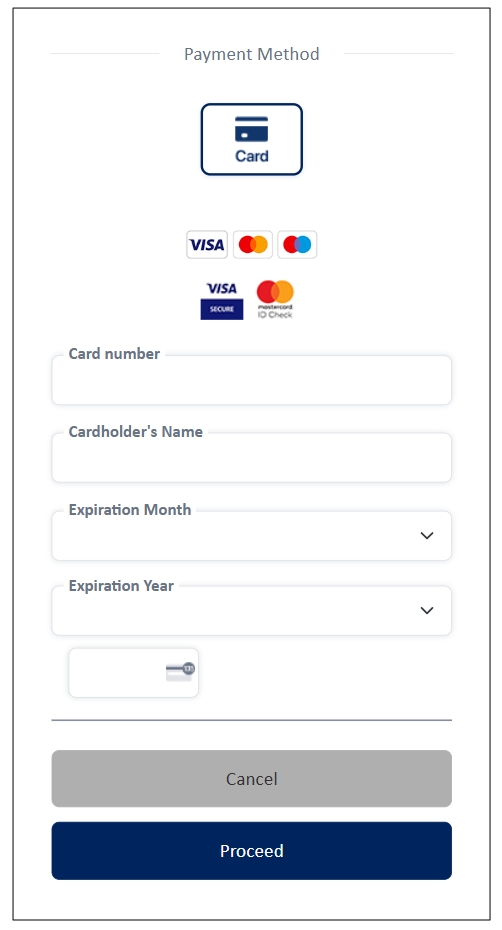
When the customer enters their card details and clicks Proceed, the payment is processed and the customer is redirected to the order thank you page. Also, the order is marked as paid on the order management dashboard.
Deactivate or Disconnect Eurobank from Your Store
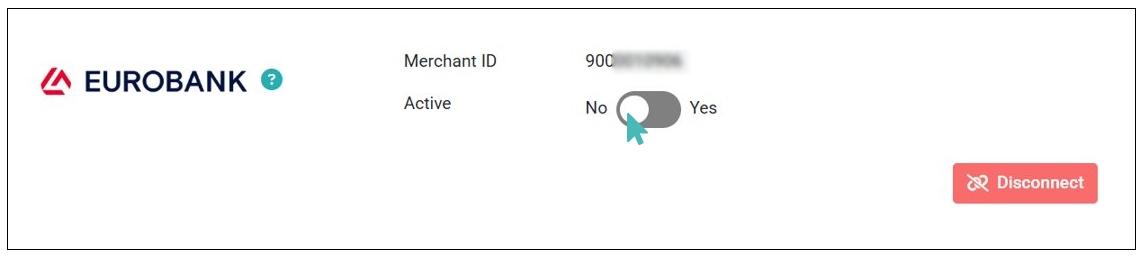
If you want to temporarily stop receiving payments via Eurobank, you can deactivate the connection. This option ensures you no longer receive the payments via Eurobank but keeps your integration details saved on your store.
To deactivate Eurobank, toggle the Active button on the Eurobank integration section to No.
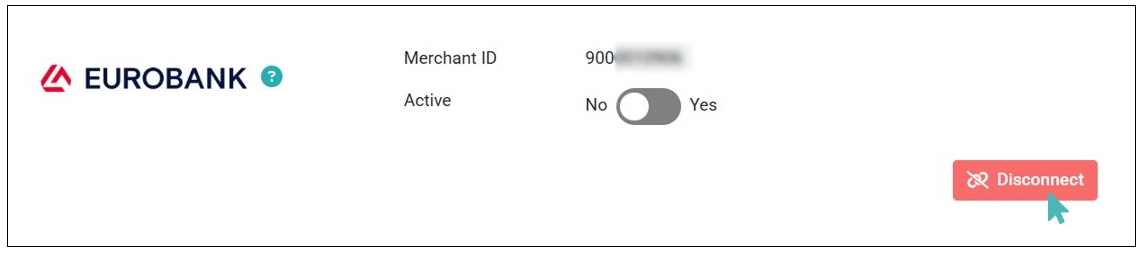
Alternatively, you can disconnect Eurobank and remove the integration details from your store. This option is ideal when you want to permanently stop receiving online payments via Eurobank.
When you opt to deactivate or disconnect Eurobank, it’s important to connect to an alternative payment provider if you wish to continue receiving payments online.