Gone are the days when customers consumed meals just for the sake of satisfying themselves. In today’s world, customers are more informed and enlightened than ever – they consume meals that add value to their wellness. Combining this with the increasing food-related health risks, customers often want to know the exact nutritional value of the meals they’re consuming. And that’s where the GonnaOrder’s nutrition information comes in. You can use this feature to build trust among your customers.
On This Page
- Add Nutritional Information on Your Store Items
- Add Nutritional Information on Options and Variants
- What Nutritional Information Can You Set?
- How Item Nutritional Information Appears on the Customer Interface
Add Nutrition Information on Your Store Items
GonnaOrder allows you to add the nutritional value of each of your store items. This enables you to accurately convey critical information about your store offerings, allowing customers to make informed decisions about their diet combination(s).
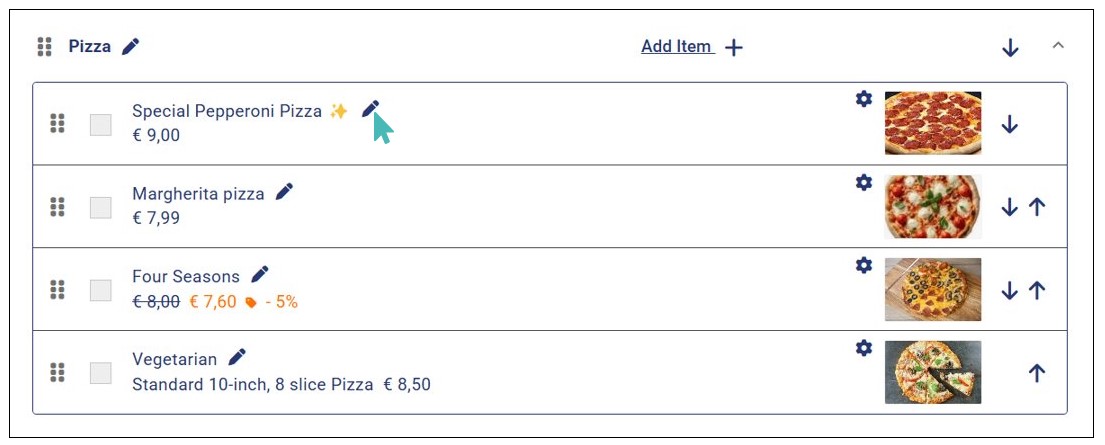
To add nutritional information on your store items, click the edit icon on the store item you’d like to add the nutritional details.
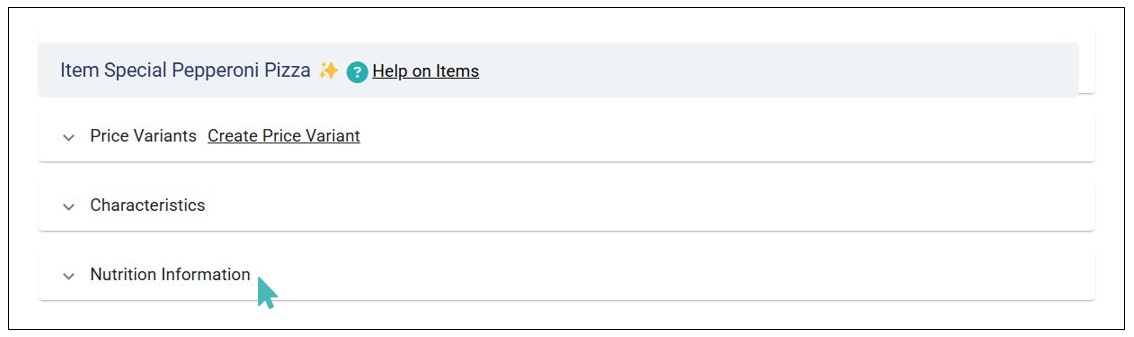
Scroll down on the item details page to find Nutrition Information and click to expand.
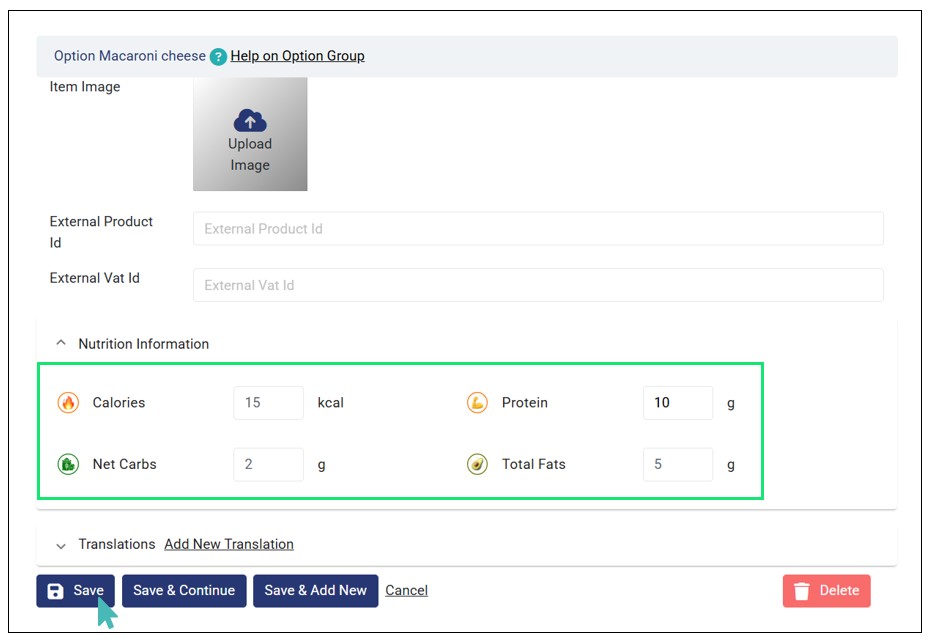
Lastly, enter the respective nutritional information (calories, protein, net carbs, & total fats) about the product and Save the changes.
Add Nutritional Information on Options and Variants
Besides main store items, you can also add nutritional information on options and variants. This ensures every item and its related child items have important nutritional information to help customers make informed dietary decisions. Here is how to add nutrition information information on options & variants.
Adding Nutritional Information on Options
Here are the steps to follow to add nutrition info on options:
- Go to Catalog on the side menu and expand the Category with the item that has the options you would like to add nutrition information.
- Click the edit icon on the product to open the item details page.
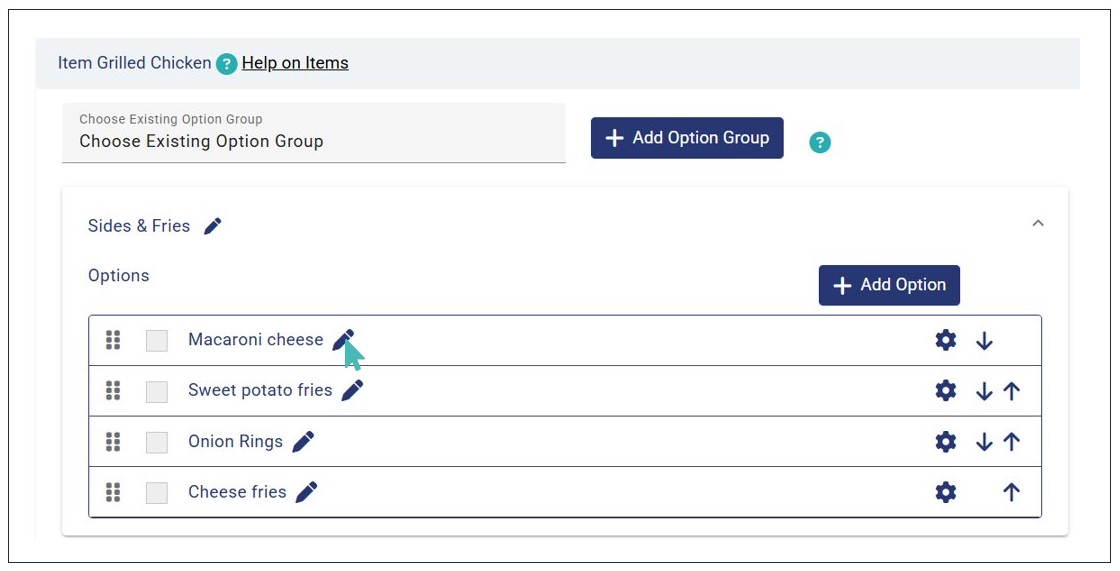
- Scroll down the item details page to find the Options under the Option Groups section.
- Click the edit icon on the Option you would like to add nutrition information to open the option details page.
- Next, expand the Nutrition Information dropdown and add the respective calories, protein, net carbs, & total fats.
- Click Save for the changes to take effect.
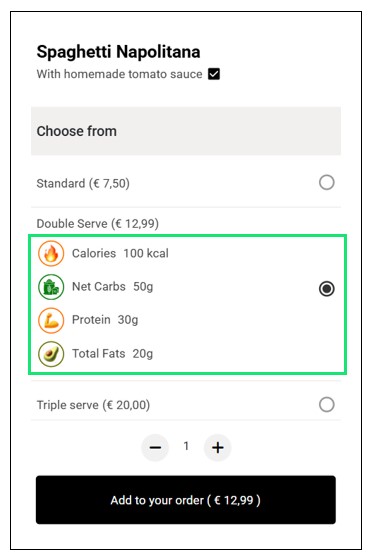
The nutritional information is displayed on the customer menu under the option on the item details page.
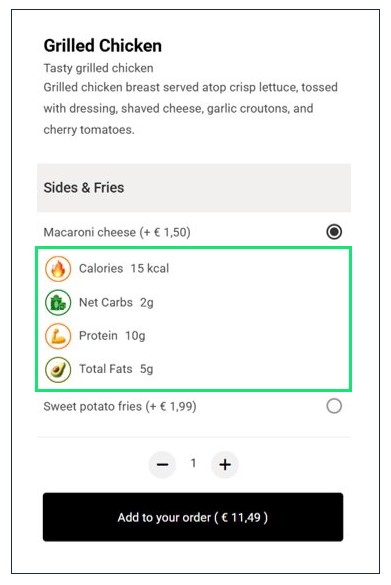
Adding Nutrition Information on Price Variants
Just like options, adding nutrition information on price variants follows the same logic, only that you access the Variants section.
- Open the item details page of the item with variants.
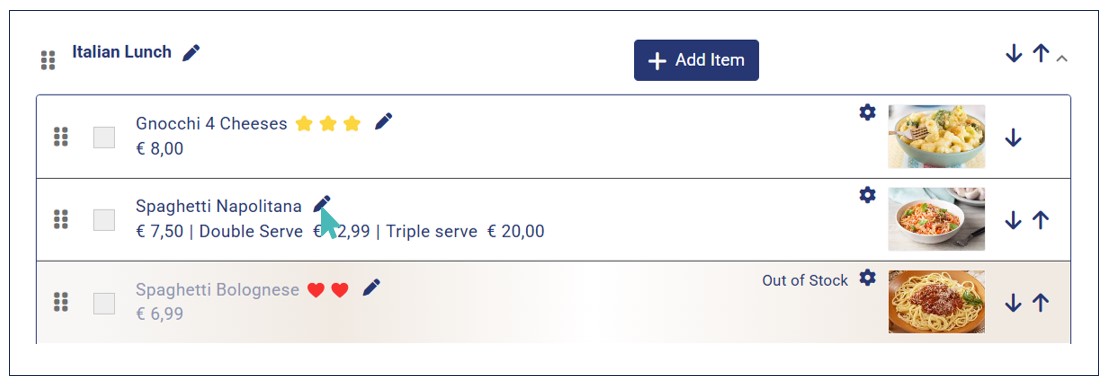
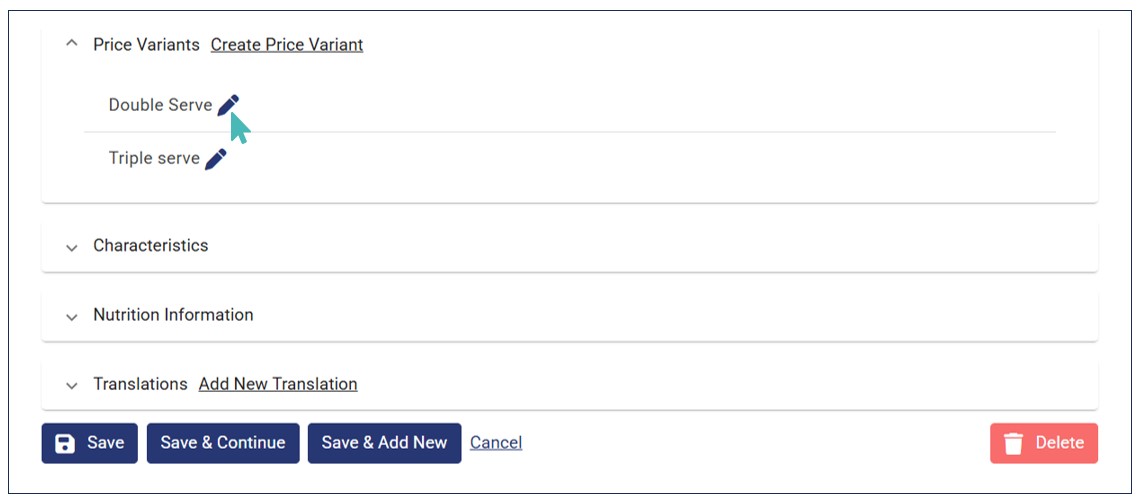
- Scroll down to the variants section and click the edit icon on the variant you would like to add nutrition information
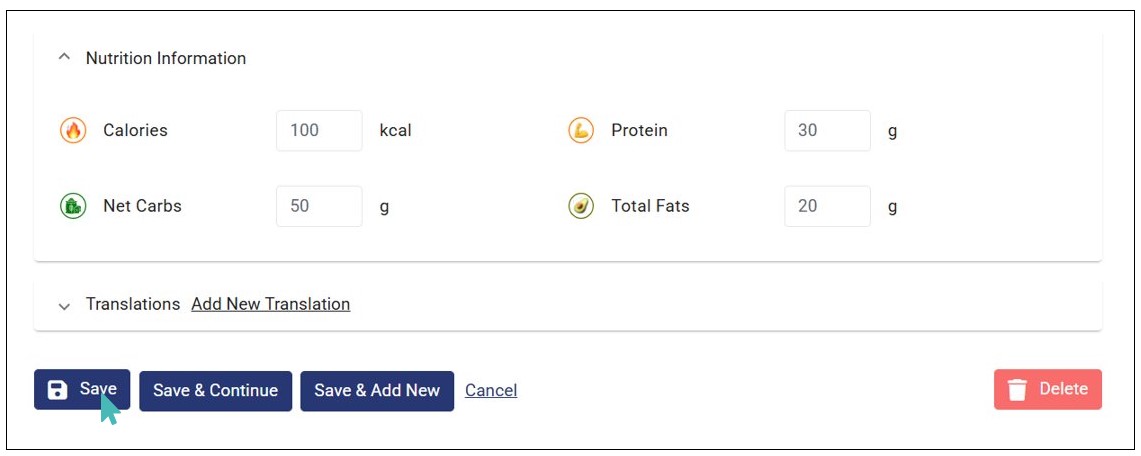
- On the variants page, expand the Nutrition Information dropdown to add the respective calories, protein, net carbs, & total fats.
- Finally, click Save for the changes to take effect.
Here is how the nutritional details will reflect on the customer menu.
What Nutritional Information Can You Set?
GonnaOrder allows you to add the following nutritional information on your store items, options, and price variants:
Calories: This is the amount of energy that the specific item (food or drink) provides.
Protein: This is the protein content of the store item.
Net Carbs: This is the net carbohydrates available in the specified store item.
Total Fat: Here, you specify the fat content of the item.

Once done, click Save for the information updates to take effect.
Note
- You may consider involving a certified nutritionist to ensure the nutritional information entered is accurate.
- You can input up to 4 digits on the calories field while the remaining fields (proteins, net carbs, and total fat) accept a maximum of 3 digits. Also, you can only input integers – decimals are not supported.
How Item Nutritional Information Appears on the Customer Menu
The nutritional information added on the item details page is displayed on the customer UI. The calories are displayed on the menu item while the other information (protein, net carbs, & total fats) is displayed when the customer clicks the item.

