GonnaOrder allows you to set the preferred order fulfilment method depending on your business model. You can set your order fulfilment method as the typical deliver model, where customers place orders in your store and you fulfill them accordingly, as table, pickup, or delivery orders. On the other hand, if your business offers services that involve collecting items from the customer, servicing them, and returning them back to the customer, you can consider the pickup and return order fulfilment option. This ensures you set up your GonnaOrder store to align with your business model.
On This Page
- Set Deliver as the Preferred Order Fulfilment Approach
- Set Pickup and Return as the Preferred Order Fulfilment Option
Set Deliver as the Preferred Order Fulfilment Approach
Deliver is the standard order fulfilment option for most stores. It allows your customers to add items to cart, choose how and when they want to receive their order on the checkout page. In this case, the main role of your store is to deliver the ordered items to the customer.
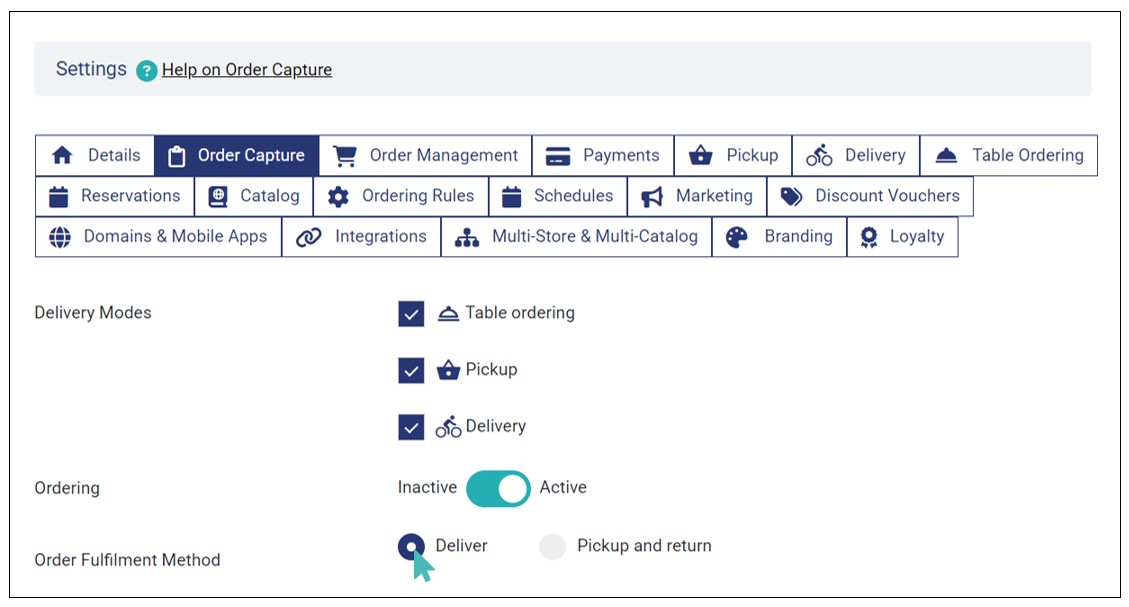
To set this option as your preferred order fulfilment approach, go to Settings > Order Capture. Find Order Fulfilment Method and select Deliver.
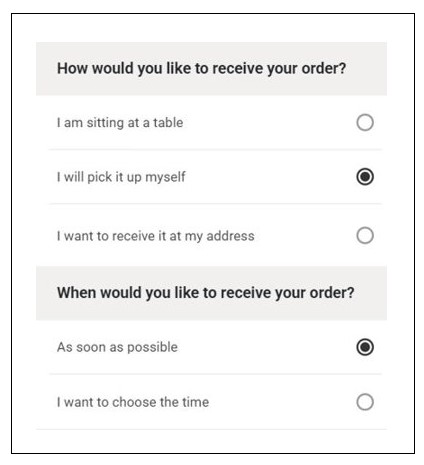
On the checkout page, your customers can select how and when they would like to receive their orders.
Set Pickup and Return as the Preferred Order Fulfilment Option
The pickup and return order fulfilment method allows you to set your store in a way that you can collect items from the customer, service them, and return them to the customer. For example, a dry cleaning business will collect dirty laundry from customers, clean them, and return them to the customer. If you run such type of business, GonnaOrder’s pickup and return order fulfillment method comes in handy.
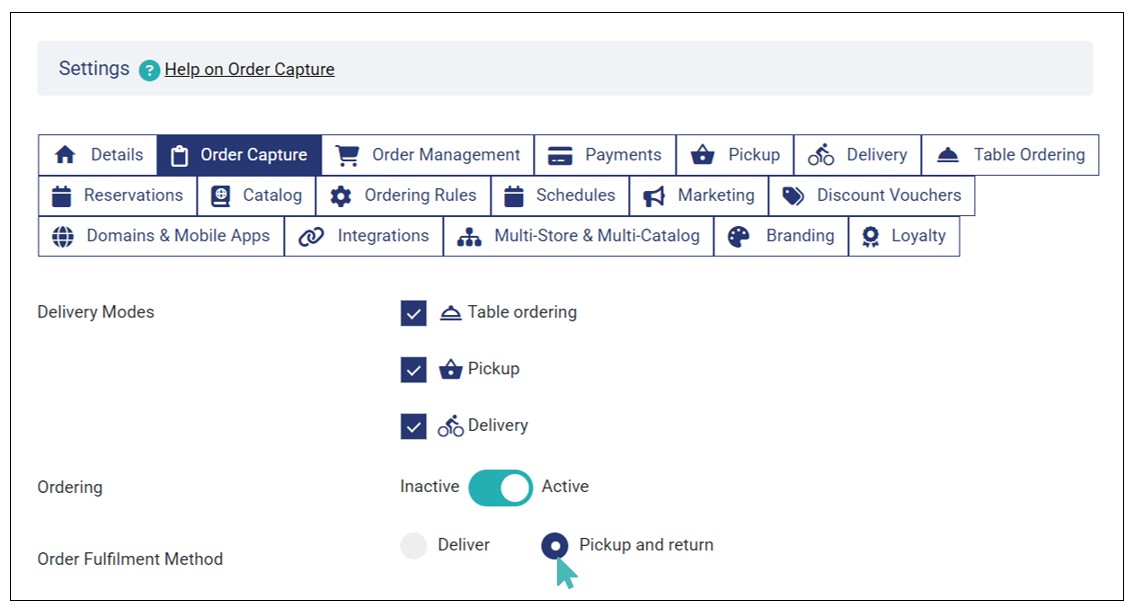
To set pickup and return as the preferred order fulfilment mode, go to Settings > Order Capture. Find Order Fulfilment Method and select Pickup and return.
When this order fulfilment method is chosen, there are three key questions that appear on the customer’s cart page to help streamline the order fulfilment. These questions are:
- How should we collect your items?
- When would you like us to collect your items?
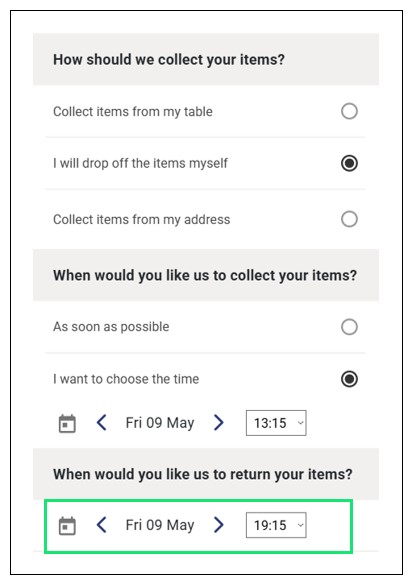
- When would you like us to return your items?
How should we collect your items?
This question allows the customer to specify where your store should collect the items. Each delivery mode (in deliver order fulfilment mode) is matched with a collection option as follows.
Collect items from my table. In this case, the customer is seated at a table in the store, where waitstaff can collect the items.
I will drop off the items myself. It implies that the customer will drop the items to the service point.
Collect items from my address. This option implies that the store is responsible for collecting the items from the customer’s address. Therefore, the customer must provide their address information for the store to arrange the item collection process. Additional collection fee may apply.
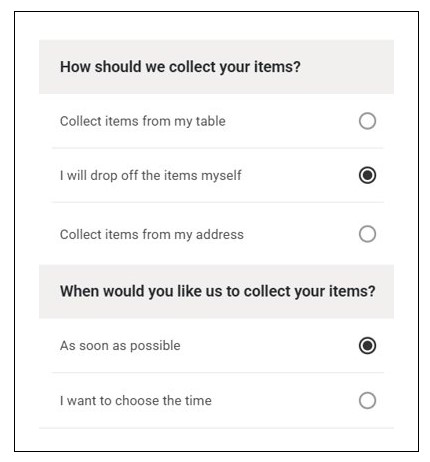
When you have only enabled one delivery mode, the customer will only be able to use the supported mode for item collection. For example, if you have selected table ordering as the only supported delivery mode for your store, you can collect customer items from the tables. See more about selecting delivery options.
Notes
- Deliver is the default order fulfilment method. Therefore, new stores have this as their standard order fulfilment mode.
- An additional collection fee may apply for customers who choose the Collect items from my address option.
When would you like us to collect your items?
Here, the customer specifies when they would like you to collect their item(s) for service. The following are the available options:
As soon as possible. This option implies that the customer’s items are ready for collection using the selected mode of collection.
I want to choose the time. The customer specifies the date and time when they would like your store to collect the items. This option is ideal if the customer’s items are not ready for collection at the moment.
When would you like us to return your items?
Just like the collection time, the customer selects the date and time they would like your store to return their items after servicing them. To ensure the items are serviced successfully, the store must set a viable order processing time until order is ready.
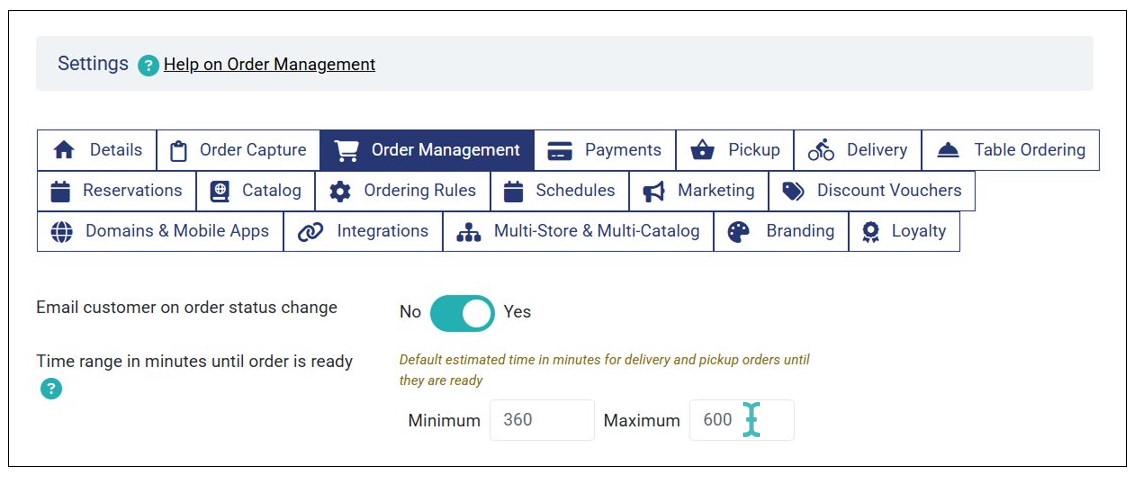
For example, you may set 360 minutes (6 hours) and 600 minutes (10 hours) as the minimum and maximum order processing times, respectively. This means after collecting the items the store takes a minimum of 360 minutes to complete the cleaning or any other servicing needed for the customer items. Read more about setting order processing time.
To set order processing time, navigate to your store Settings > Order Management and find Time range in minutes until order is ready. Next, enter the minimum and maximum time range respectively.
The customer chooses the return date and time time from the available time slot dropdown.
What Happens if the Order Processing Time Goes Beyond the Store’s Working Hours?
In some cases where pickup and return order fulfilment method is chosen, the order processing time may go beyond the store’s open hours for the day. For example, if a store opens at 0800hrs and closes at 2000hrs, then the order items cannot be serviced outside the open hours.
Let’s say a the store collects items from the customer at 1800hrs and the minimum order processing time is 360 minutes or 6 hours. In this case, the available return date slots will be from 1200hrs of the next day. The processing time counts only when the store is open.
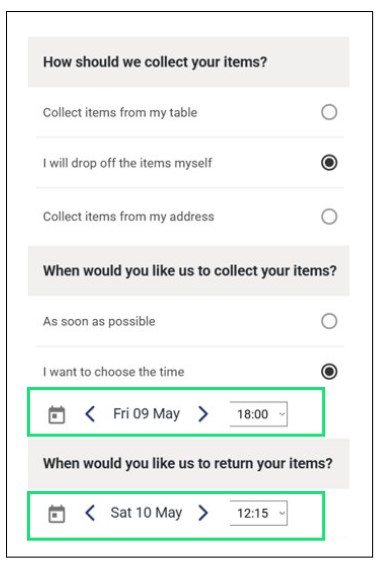
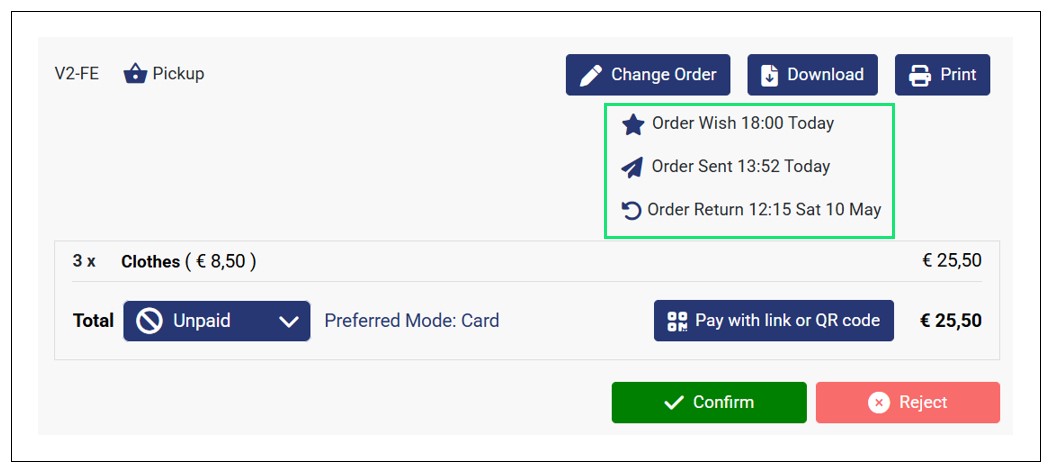
On the orders dashboard, the store user can view the order details, including the when the customer would like their items to be collected (wish date), when the order was sent, and when they would like you to return their items (return date).