You can quickly track customer orders, ensuring timely serving, pickup, or delivery. This is possible through the Order Tracker feature, which enables you to quickly view order under preparation as well as those that are ready. Additionally, you can use the customer order display feature to enable customers to view and collect their orders when they’re ready. This can significantly boost customer satisfaction.
On This Page
- How to Track Your Customer Orders
- Order Details on the Order Tracker Screen
- Display Orders on a Public Order Display
How to Track Your Customer Orders
You can track incoming customer orders to see which ones are under preparation as well as those ready for collection. To visualize your customers’ order progress, follow these steps:
- Manually select and Confirm received customer orders in the Open tab if you have not enabled the auto-accept incoming orders feature under Order Management settings. Note that you can Confirm one or multiple orders at once.
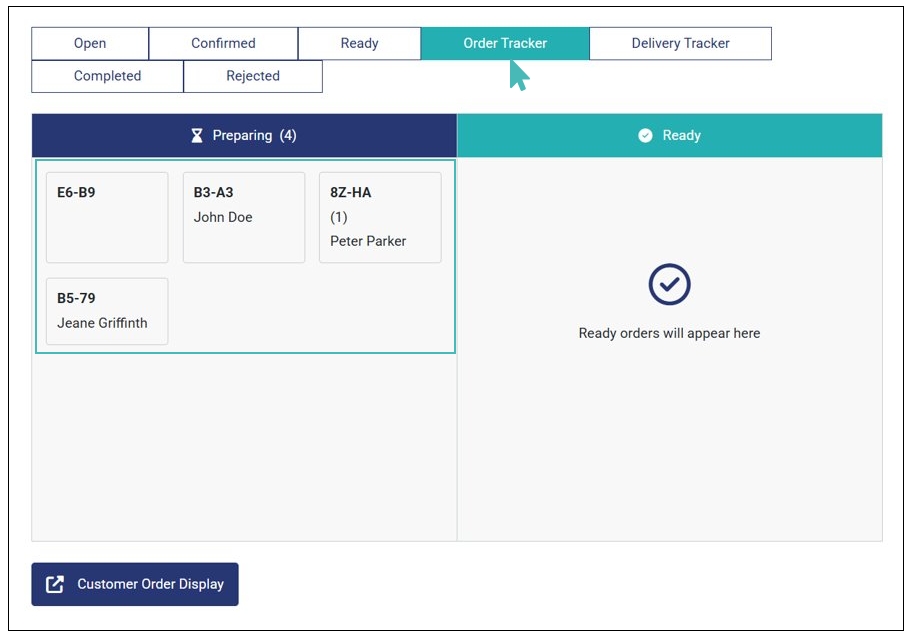
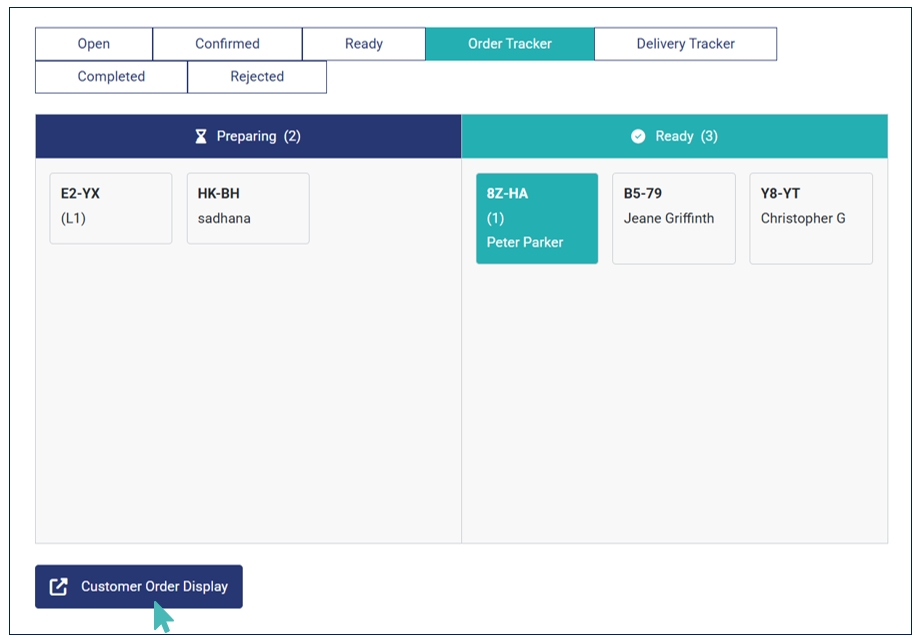
- Confirmed orders go to the Confirmed orders tab. You can view the orders you just confirmed on the Preparing section on the Order Tracker screen.
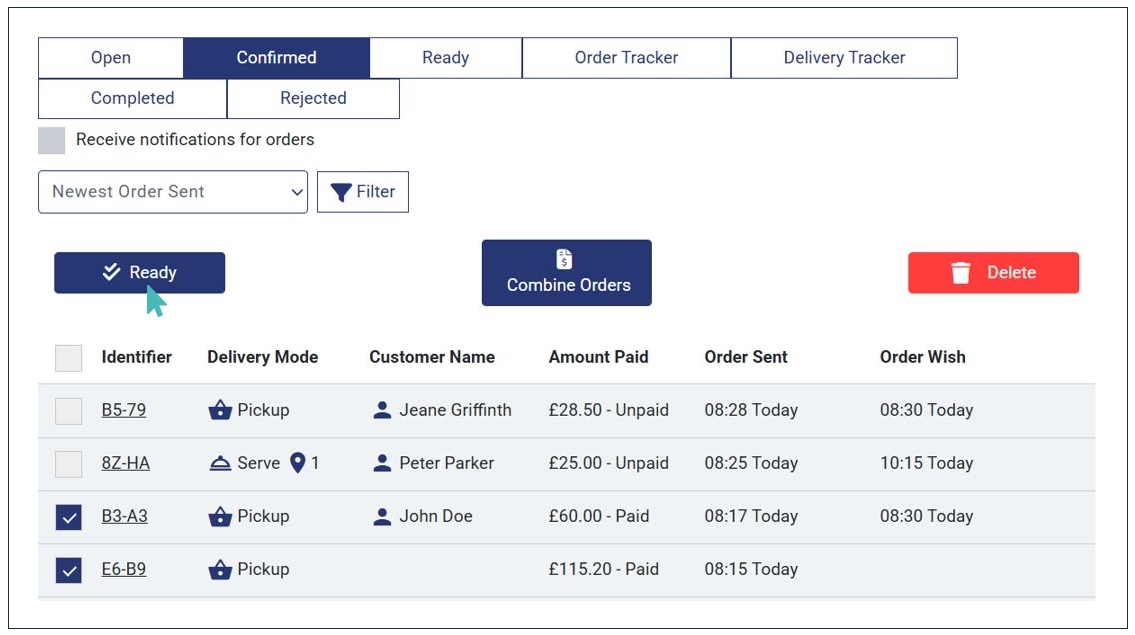
- When an order(s) is ready for collection, mark it/them as Ready. Note that you can only mark Confirmed orders Ready.
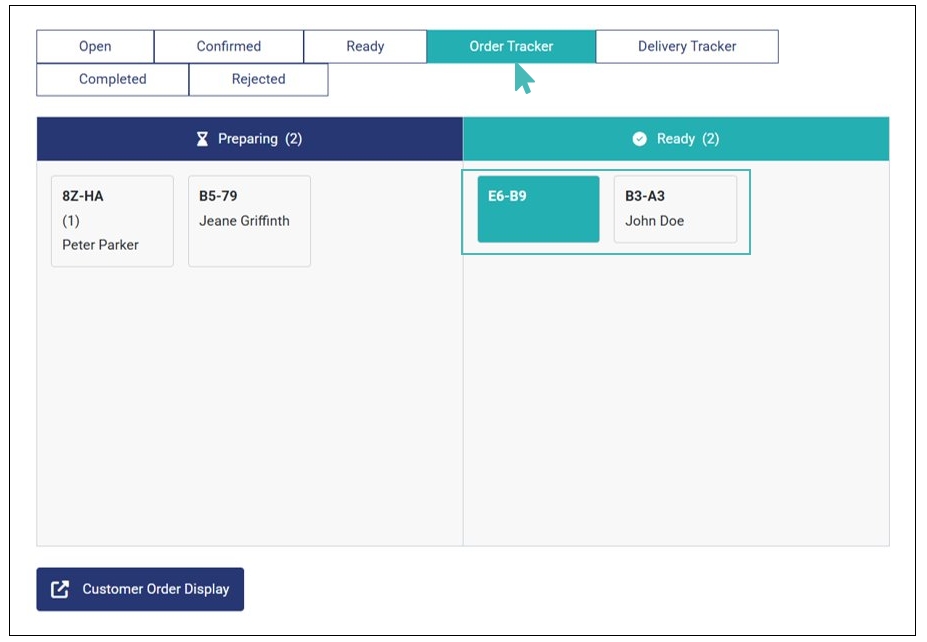
- Upon marking an order or orders as ready, they move from Preparing to Ready on the Order Tracker screen.
- Confirmed/accepted orders appear on the Preparing section on the Order Tracker screen.
- Ready orders appear on the Ready section on the Order Tracker screen.
- If you have enabled the Automatically accept orders feature, all incoming orders appear on the Preparing section on the order tracker screen.
- Only recently confirmed orders and those recently marked as ready appear on the Order Tracker screen. They are removed after from the screen after about 30 minutes.

Note
Order Details on the Order Tracker Screen
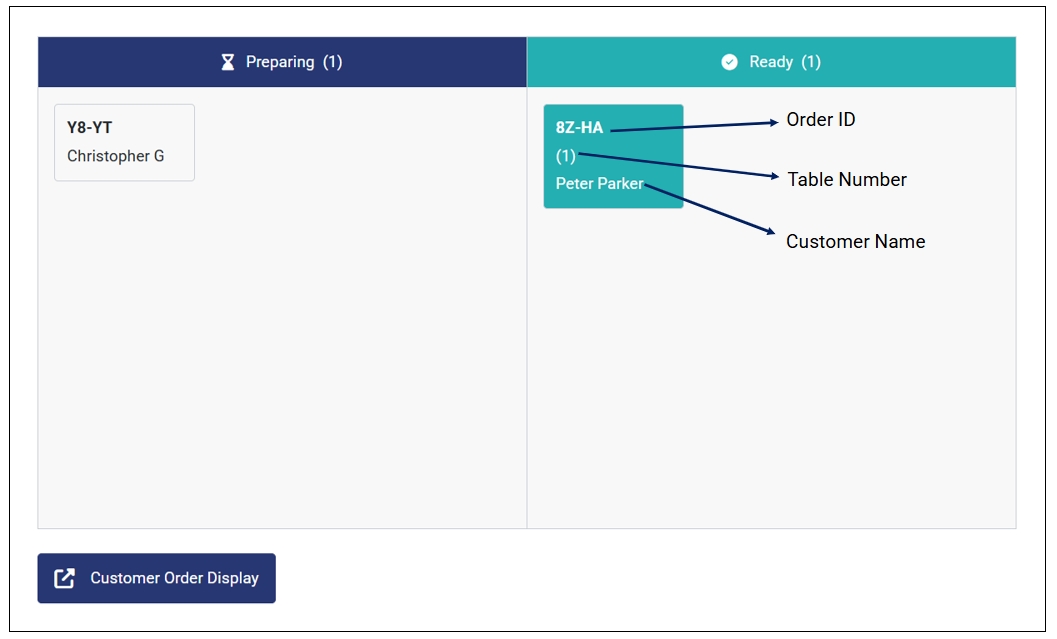
The Order Tracker screen shows limited details about each order, whether on the Preparing or Ready section. These order details include:
Order ID: This is the unique ID of each order and is shown for every order (e.g., Y8-YT).
Table/location number: For location orders, the table or location number is displayed on the order tracker screen (e.g., (1)).
Customer Name: If the customer provided their name when submitting an order, it appears on the order tracker screen (e.g., John Doe).
Display Orders on a Public Order Display
If you have a large customer order display screen, you can display orders under preparation and those that are ready. This enables customers to be aware of the status of their orders in real time. They can collect the order when it’s ready.
To share the order preparation progress (i.e., preparing & ready) on the customer order display screen, click the Customer Order Display button on the Order Tracker tab.
This will open a customer order display in a new tab which you can then share on the order display screen.
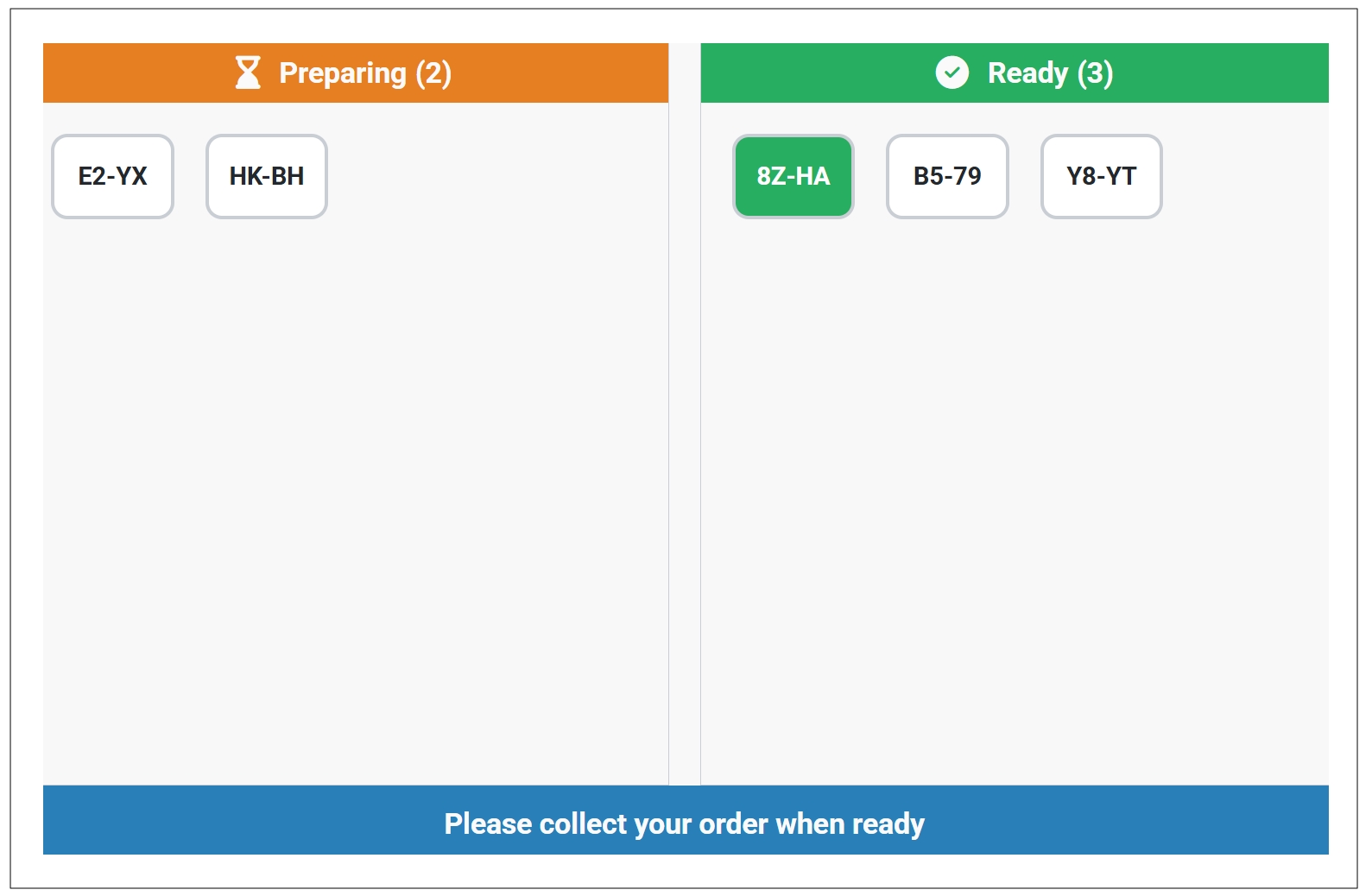
Note that the Customer Order Display will only show the order number for customer privacy purposes.