Tracking the delivery status of customer orders is crucial in ensuring timely delivery and enhancing customer experience. You can effectively manage your customer’s order delivery expectations when they place an order at your store. Delivery statuses are synced from the integrated third-party delivery provider, ensuring timely and accurate order delivery updates. You can leverage this feature to manage the delivery of orders, achieving a more satisfied customer base across your delivery zones.
Note
To use the delivery tracker for tracking the delivery status of your customers’ orders, you must integrate your store with one of the supported delivery providers.
On This Page
- Getting Started with Order Delivery Tracking
- View the Order Delivery Status
- Notify Customers When their Order Delivery Status Changes
Getting Started with Order Delivery Tracking
When your customer places a delivery order at your store, you must find a way to get it delivered at their destination. Fortunately, GonnaOrder allows you to integrate your store with various third-party delivery providers. such as Wolt Drive, Flex Delivery, WooDelivery, and MyNext. Therefore, you must configure one of the supported delivery providers to track delivery orders since all order tracking information is synced from the delivery provider.
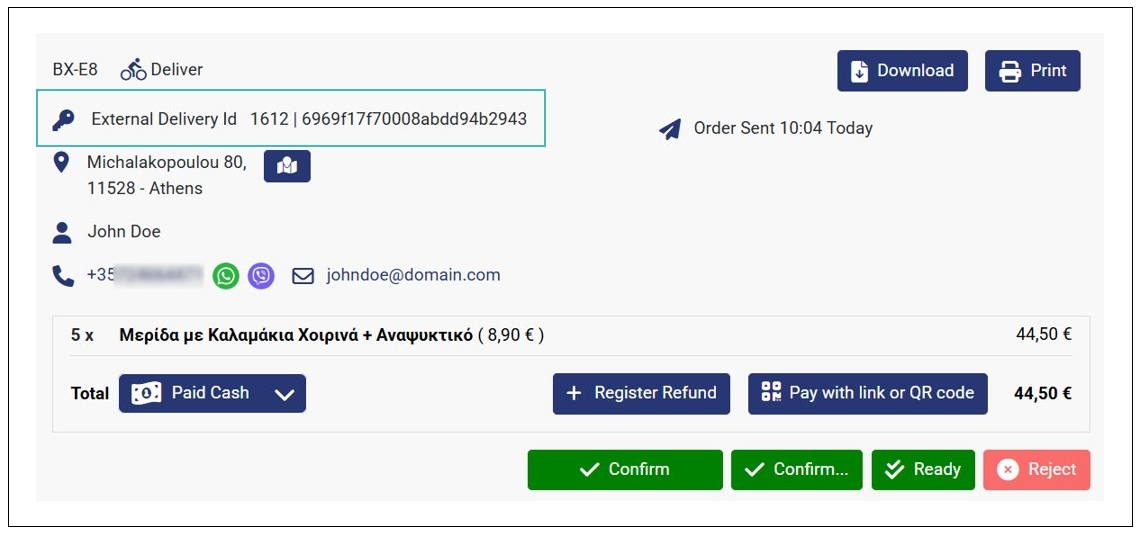
If you have connected a delivery provider, the incoming delivery orders will have an External Delivery Id. This ID implies that your order has been sent to your configured delivery provider.
View the Order Delivery Status
As a store user, you can view the delivery status of your customer orders. To do so, follow these steps:
- Go to Orders on the side menu.
- Click the Delivery Tracker tab to view the delivery status of your customer orders.
- Requested. It means the delivery request has been sent to the delivery provider.
- Accepted. The delivery request has been accepted or assigned by the provider. In other words, the delivery provider has accepted to deliver the order.
- Pickup En Route. The courier is on the way to your store to collect the order for delivery.
- Pickup Arrived. The courier is at your pickup location, that is, your store. Therefore, you can proceed to hand them the order.
- Picked Up. The courier has collected the order from the store.
- Dropoff En Route. The order is on the way to the customer’s address.
- Dropoff Arrived. The order/courier is at or near the customer’s delivery address.
- Delivered. The order has been handed to the customer.
- Cancelled. This status means the delivery provider rejected the delivery and could not fulfill it.
- Failed. It implies that the order was shipped to the customer, but for some reason, the customer did not collect the order. For instance, this may occur if the customer didn’t show up at the address they provided when submitting the order.
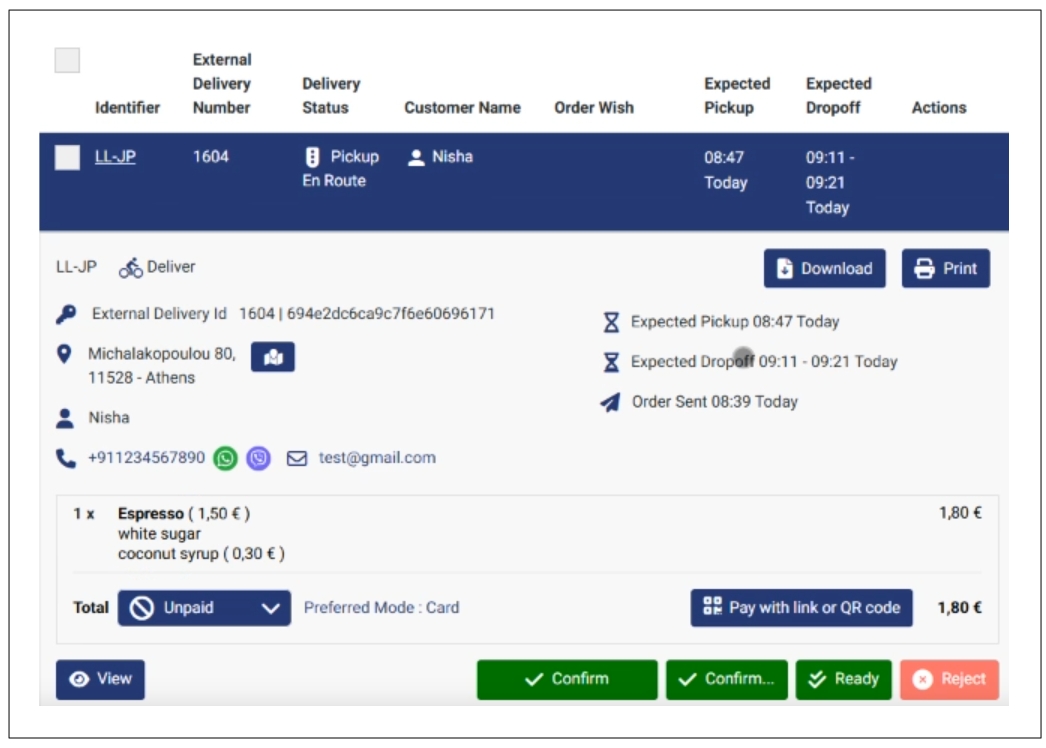
- You can click any of the orders in the Delivery Tracker tab to view their details.
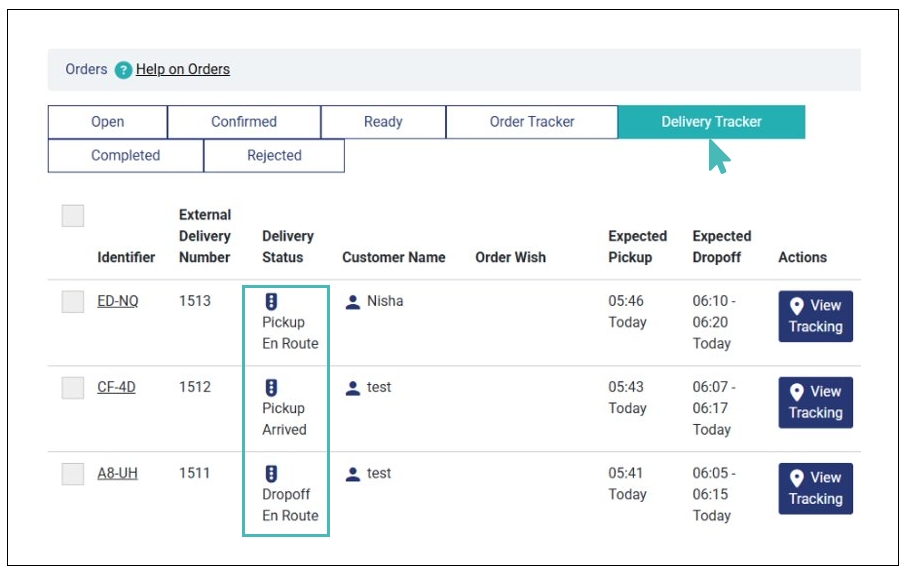
An order Delivery Status on the Delivery Tracker can be:
Track a Delivery Order on the Delivery Provider’s System
You can also track your order delivery progress on the delivery provider’s system. To do so, follow these steps:
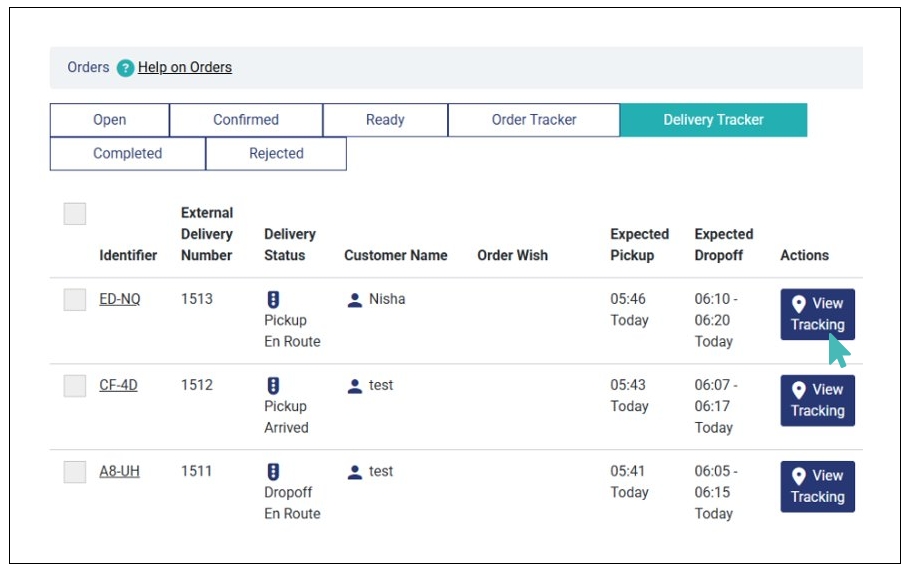
- Go to Orders on the side menu and click the Delivery Tracker tab.
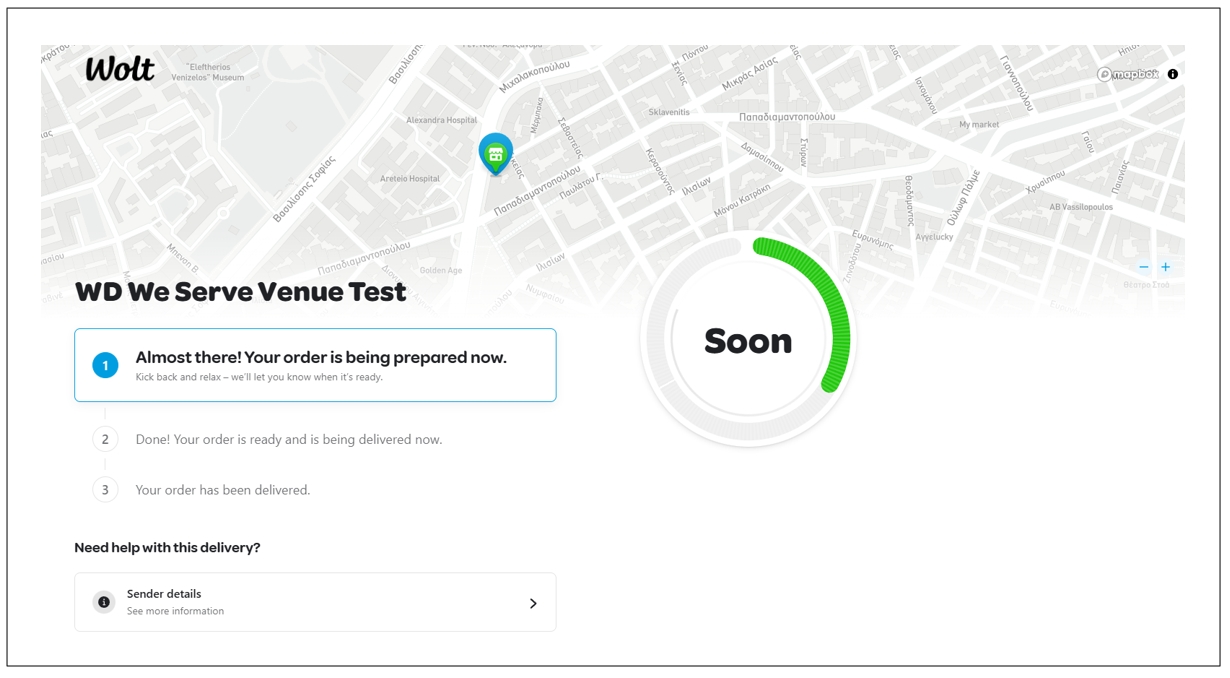
- Next, click View Tracking on the order you’d like to view it’s delivery progress. You will be redirected to the particular order tracking page on the provider’s website.
Notify Customers When their Order Delivery Status Changes
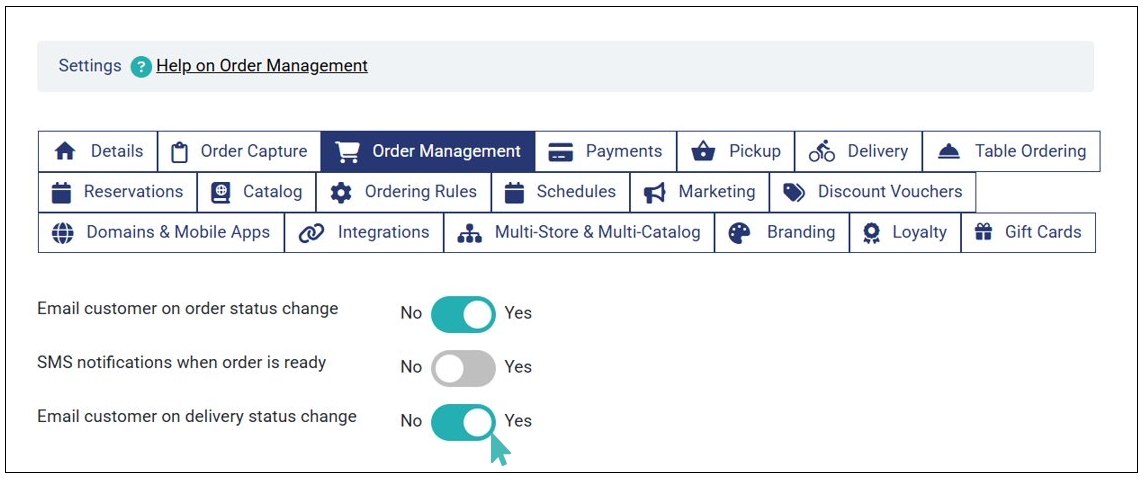
It’s important to inform your customers about their order delivery progress. This helps manage their expectations and ensures they are available when their order finally arrives at their address. You can enable the Email customer on delivery status change setting to ensure customers are aware when to expect their order to be delivered.
Here are the steps to follow to enable this email notifications:
- Go to your store Settings and click the Order Management tab.
- Find the Email customer on delivery status change setting and toggle the active button to Yes.
- Here’s a sample email sent to the customer when their order delivery status changed.
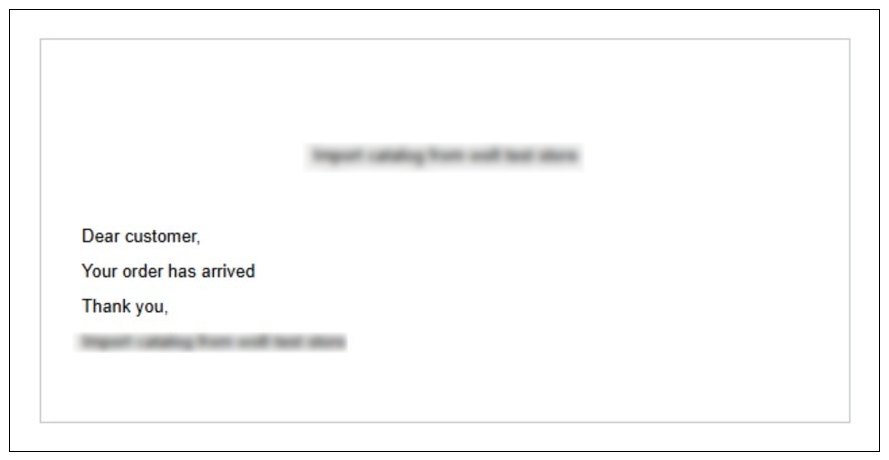
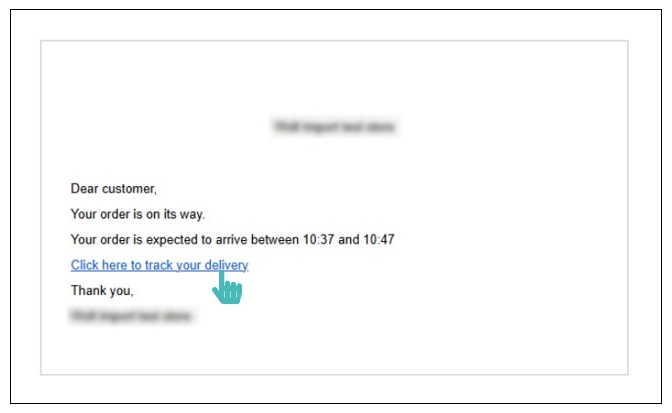
Besides being notified in case of changes in the order delivery status, customers receive an email with a link, which they can follow (click) to track the delivery progress of their order in real time. Here’s a sample email sent to a customer with a delivery tracking link. This ensures customers are aware when to expect a delivery.
What Delivery Status Changes are the Customers Notified About?
The customer is sent an email notification if their order changes to any of the following delivery statuses:
- Picked Up. This informs the customer that their order is on its way.
- Dropoff Arrived. This notifies the customer that their order is at their delivery address and they can proceed to collect it.
- Delivered. This email is sent to the customer when they collect the order.