Standard admin users cannot delete your store catalog due to various reasons, such as integrity and security. However, users with special access rights can delete your entire catalog with a single click. These users are Super Admins and Tenant Admins.
Note
Only users with special access rights can delete a catalog.
How to Delete Catalog from a Store – Super Users
Here are the steps to follow to delete a catalog:
- Login to the store you’d like to delete its catalog and click Catalog on the side menu.
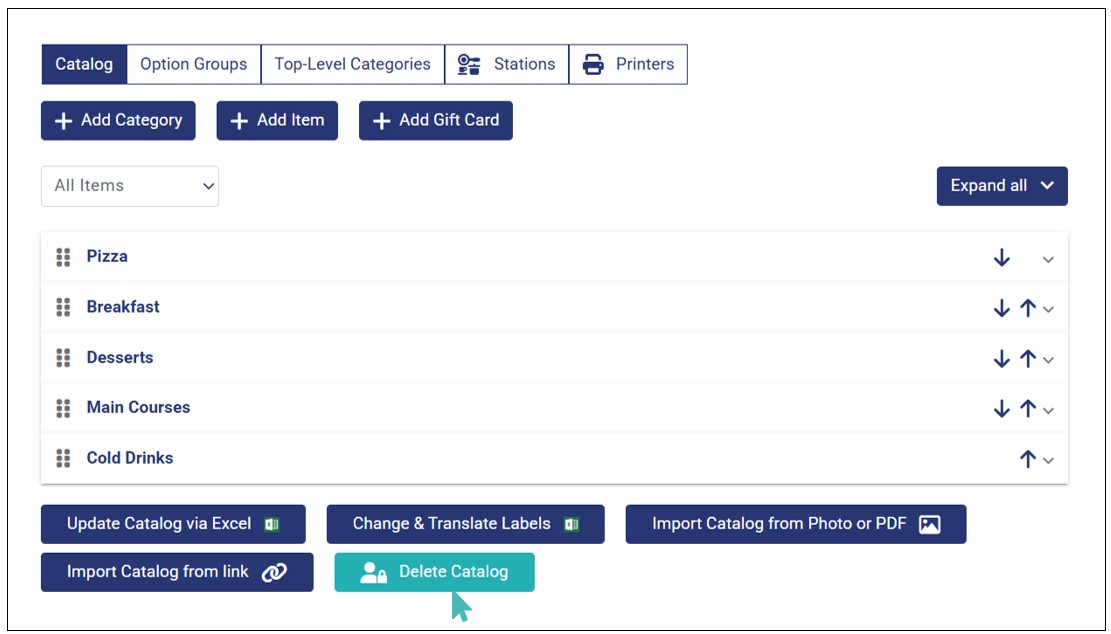
- Next, click the Delete Catalog button on the catalog page. Since, it’s designed for special access users, the delete button is highlighted in a different color from the rest.
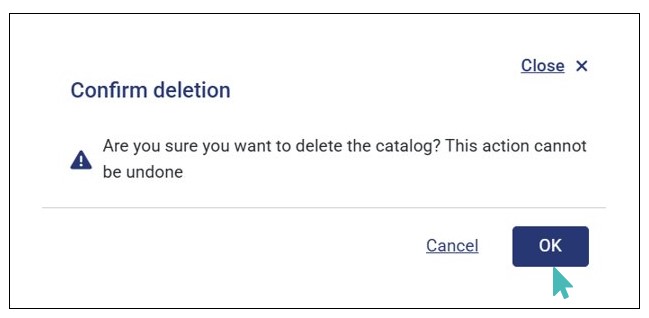
- Lastly, click OK on the dialog box that appears to confirm the deletion.
- Upon clicking OK, the catalog is deleted successfully. Therefore, all items, options, and variants are removed from your store.
Note
Deleting your store catalog removes the entire catalog from your store, and once done, you cannot recover it. Therefore, you must be sure before proceeding with this option. However, once deleted, you can quickly create a new catalog using one of the supported importing options (i.e., via Excel, from other store, from photo or PDF, or from link.)