GonnaOrder allows you to manage printers for printing incoming orders. You can Add, View, Update, and/or Delete printers in your store. You can also use the printer URL to link the printer with a specific order. This printer URL mechanism is only used for POS integrations to control where the order prints. Find more about managing printers on this guide.
On This Page
Add a New Printer to Your Store
Here are the steps to add a new printer to your store:
- Login to your store and click Catalog on the side menu.
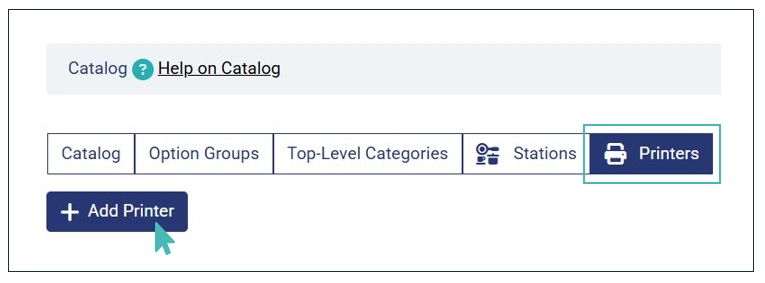
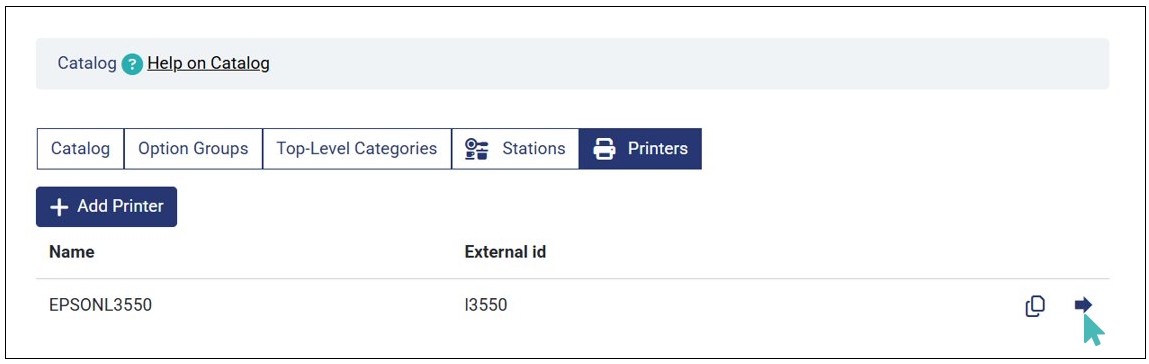
- Navigate to the Printers tab and click Add Printer.
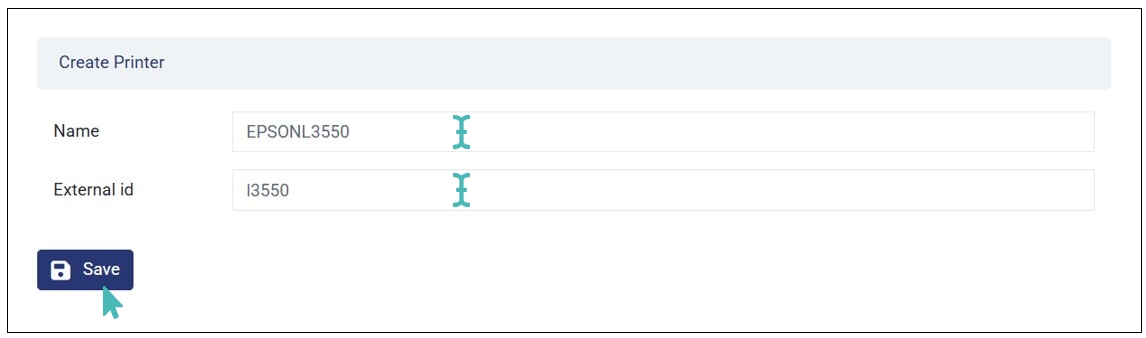
- Enter your Printer Name and optionally, the External id and click Save. Note that the printer name is mandatory while the external ID is optional.
- The printer name field accepts a maximum of 10 characters.
- Only uppercase (capital) letters, numbers, and hyphen are allowed on the printer name field – All other special characters and lowercase letters are not permitted.
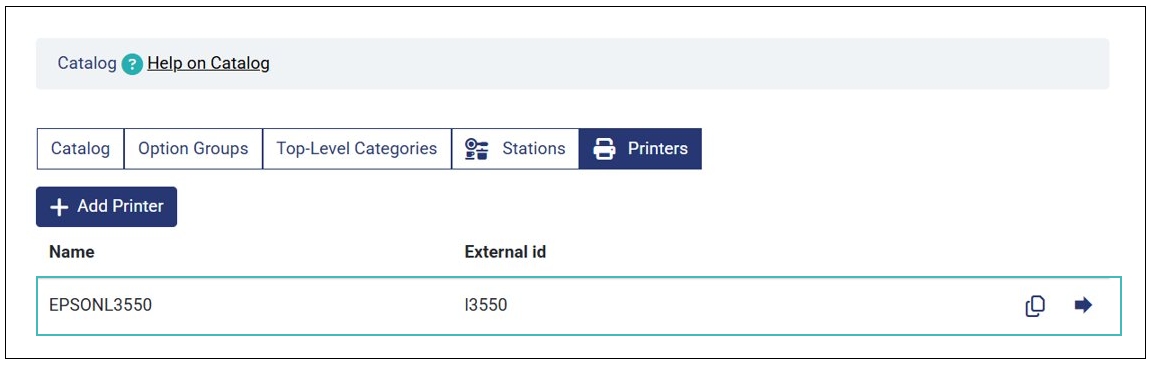
- The printer is successfully created on your store and will appear on the printers list.
Note When Inputting the Printer Name
View and/or Update Printer Details
You can view the details of each printer created on your store. Also, you can update printer information (i.e., name & external ID) when necessary. This ensures you have accurate printer information even when you change or add a printer to your store.
Here are the steps to follow to view / update printer details:
- Click the forward arrow on the printer you’d like to view or update its details.
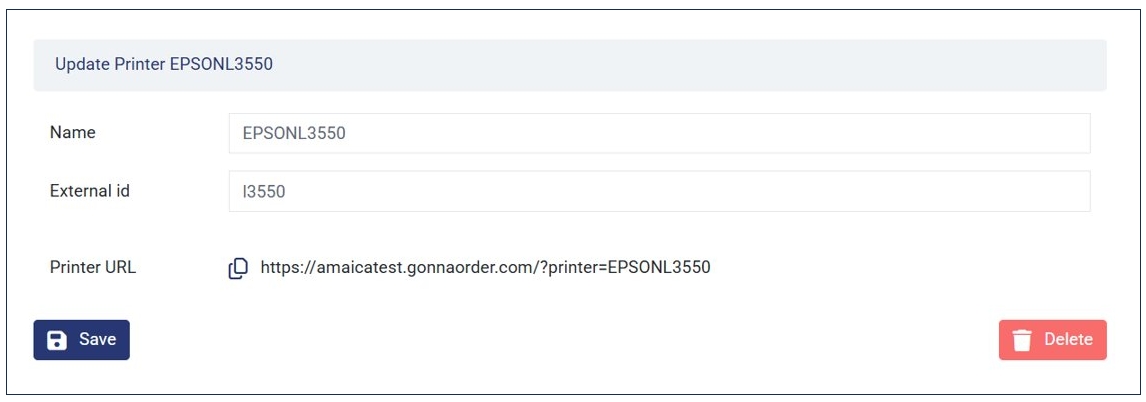
- Take the necessary action on the Update Printer page.
- While on the Update Printer page, you can:
View printer Name, External id, and Printer URL.
Edit and Save changes on the printer Name and External id. Note that the Printer URL automatically updates as you change the printer name.
Copy the Printer URL. Simply click the copy icon and the paste the link to a new tab.
Copying the Printer URL 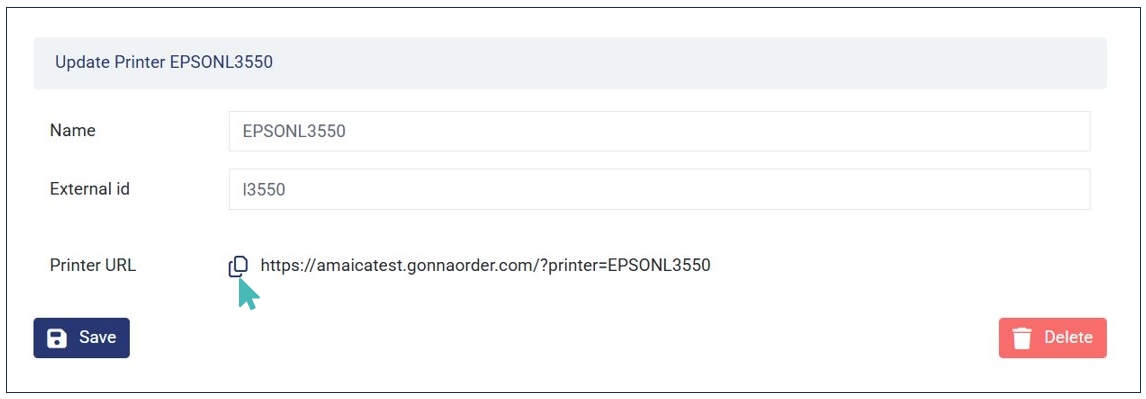
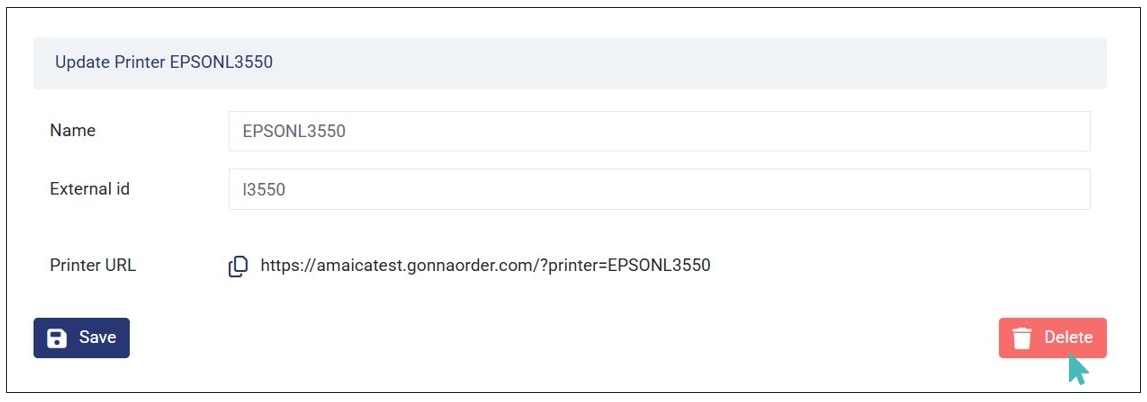
Delete the Printer. You can do so by clicking Delete and confirming the deletion by clicking OK on the dialog box that appears.
Ordering Via the Printer URL
When you copy the printer URL and paste it on a new tab, you are redirected to your store’s homepage. However, when you place an order via the printer URL, the order is automatically attached to the printer. Therefore, the order will appear with a printer icon and name of the printer on the orders dashboard.
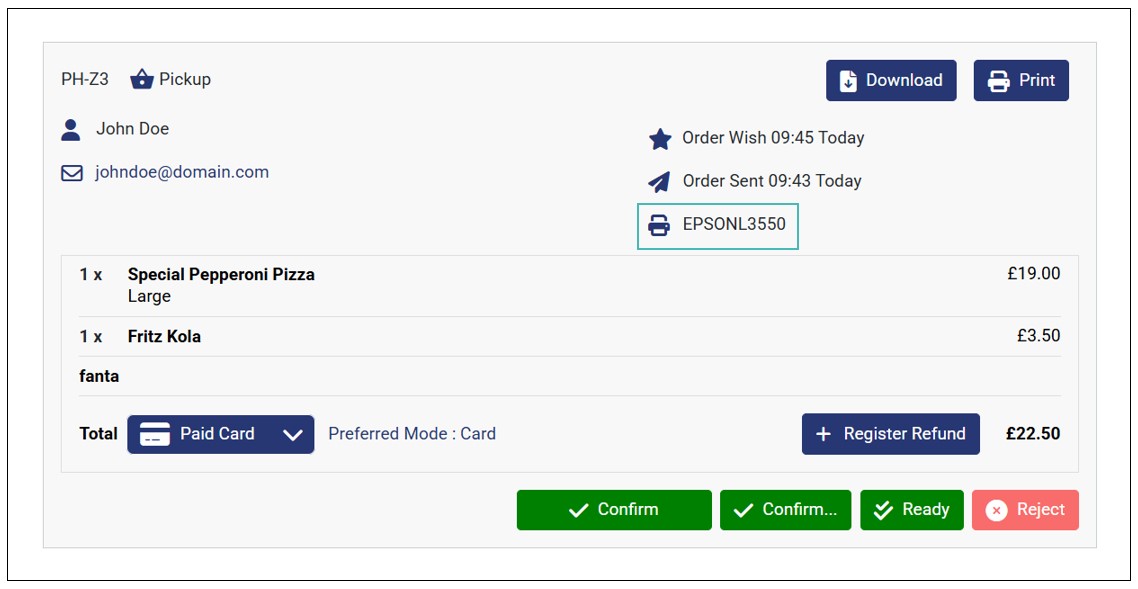
It’s important to note that the printer URL mechanism is only used for POS integrations (e.g., Sunsoft) to control where and how the order is printed, depending on the mode of payment. Unpaid and paid offline (via cash or card) print order receipt while orders paid online print a legal invoice.
Note on Using the Printer URL Mechanism
The printer URL mechanism is strictly used for POS integrations to control where the order prints, where:
- Unpaid orders and orders paid offline print an order receipt.
- Orders paid online print a legal invoice.