NBG Pay is an end-to-end payment provider designed to enable you to accept payments online or in-store with ease and confidence. Connecting your GonnaOrder store with NBG Pay allows you to receive online payments safely and fast. Whether its standalone payments or normal online order payments, NBG Pay has you covered, and with no additional hardware setup needed.
| Website | https://nbgpay.globalpayments.com/en-gr |
| Supported Payment methods | Credit & debit cards and mobile wallets like Google Pay and Apple Pay |
| Available countries | Greece |
| Payment provider logo |  |
On This Page
- Getting Started with NBG Pay
- Connect Your Store with NBG Pay
- NBG Pay Payment Interface
- Deactivate or Disconnect NBG Pay From Your Store
Getting Started with NBG Pay
To start using NBG Pay as your payment provider, you need to first request a merchant account by contacting their support team. Alternatively, you can use an existing account. However, you will still need to request the integration details from your account manager.
The NBG Pay team will provide three integration parameters required to connect your store with NBG Pay. These are:
Merchant ID
Shared Secret
Account ID
Note
Contact NBG Pay support to obtain your integration details.
Connect Your Store with NBG Pay
With the integration details provided in the previous section, you can connect your store with NBG Pay and start receiving online payments for orders and standalone payments. To connect your store with NBG Pay, follow these steps:
- Go to your store Settings on the side menu and click the Payments tab.
- Find the NBG Pay logo from the supported providers and click Connect.
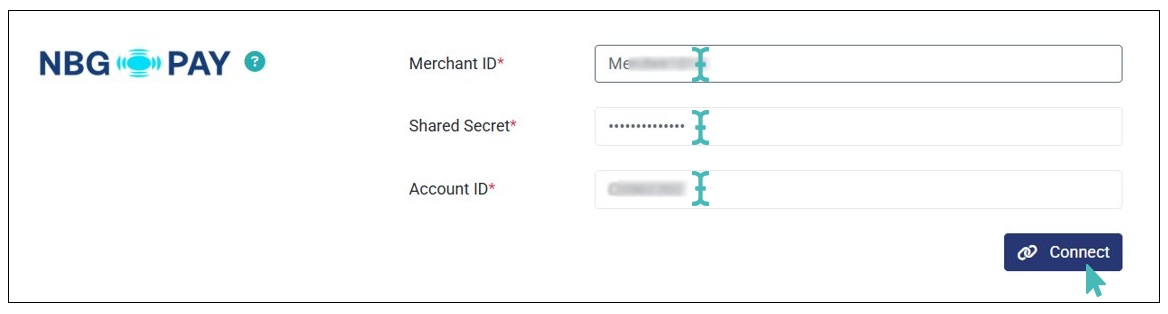
- Enter the integration details provided by NBG Pay (i.e., Merchant ID, Shared Secret & Account ID) on the respective fields and click Connect.
- The store is successfully connected to NBG Pay and you can start receiving online order payments and standalone payments.


Note
NBG Pay payment provider is only available for Greece-based stores.
NBG Pay Payment Interface
After a successful connection to NBG Pay, customers are redirected to a secure payment page when they proceed to pay online for their order. At first, they must provide their billing details before proceeding to enter their payment details.
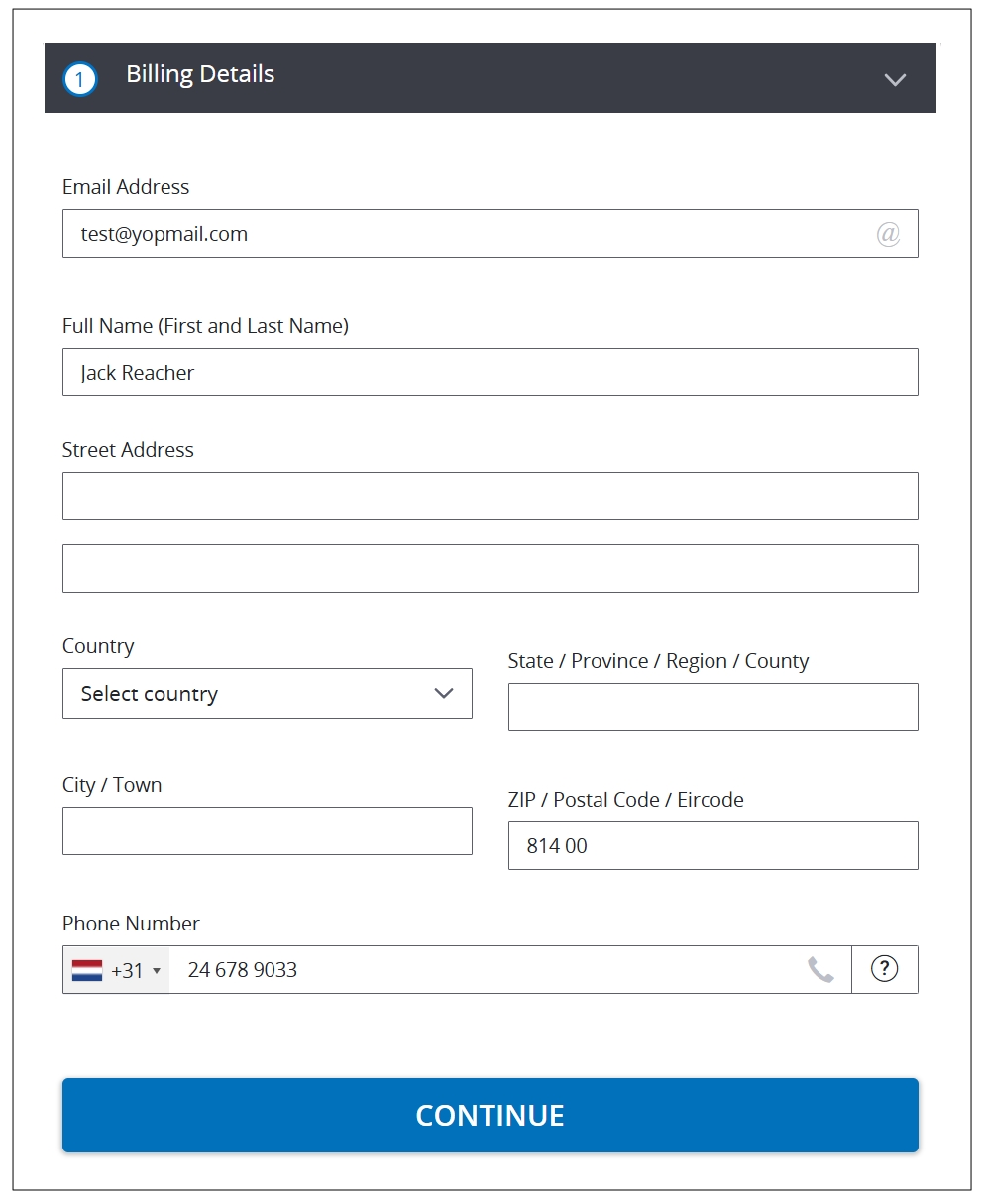
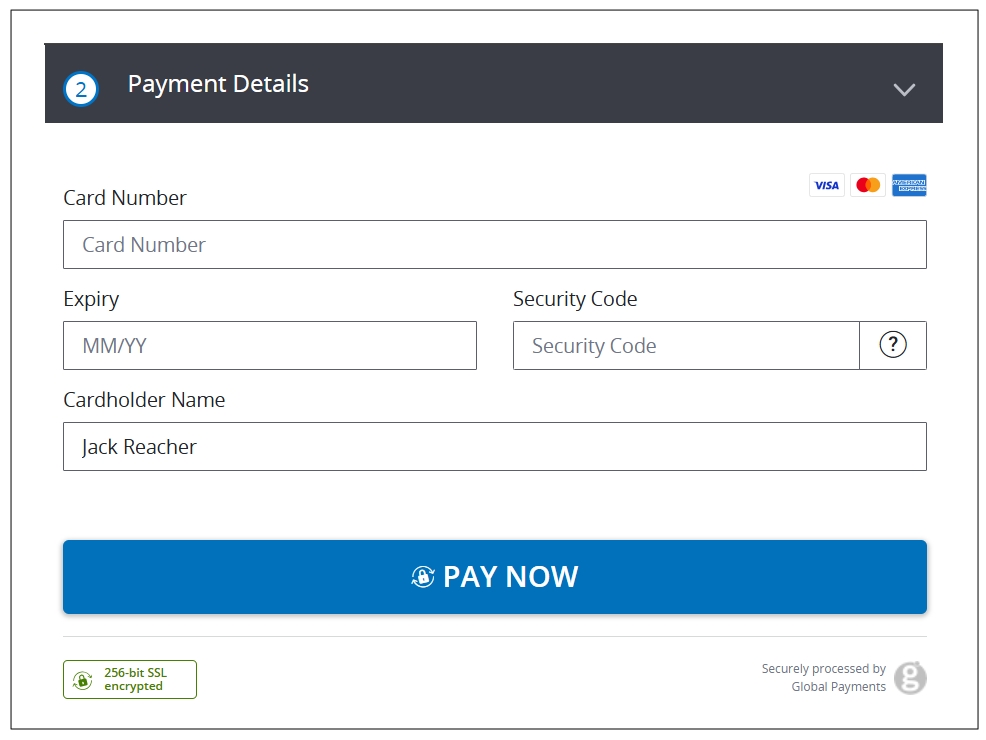
Once the customer enters their billing information and clicks CONTINUE, they access the payment details page, where they can enter their card details and PAY NOW to complete the payment.
Deactivate or Disconnect NBG Pay From Your Store
If you no longer want to receive payments via NBG Pay, you can deactivate or disconnect the connection. The deactivation option keeps your integration details on the store. Therefore, it’s ideal when you want to temporarily pause payments via NBG Pay.
To deactivate NBG Pay, toggle the Active button on the NBG Pay integration to No.

Alternatively, you can completely disconnect NBG Pay from your store. This option permanently deletes your integration details. Therefore, it’s more ideal when you want to permanently stop receiving payments via the provider.

Once disconnected, you will need to set up another payment provider to continue receiving online payments.