The Balances tab under Statistics & Reports shows your overall sales and refunds stats over time. It helps you visualize the store sales, refunds, and any discrepancies in sales report over a selected period. Therefore, the balance reports can be your point of reference in ensuring financial accountability and transparency. Also, it gives you a quick overview of your sales progress over time.
Note
You can only view the balance statistics and reports if you have been tracking your daily balances and refunds at the beginning of every new business day.
On This Page
- View Balance Stats and Reports
- Understanding Balance Statistics and Reports
- Differences Between the Daily and Monthly Balance Reports
- Download Your Daily Balance Reports
- How to Address the “No Data Found” Issue in Balance Reports
View Balance Stats and Reports
To view your store balance statistics over a given period, follow these steps:
- Login to your store and click Statistics & Reports on the left pane.
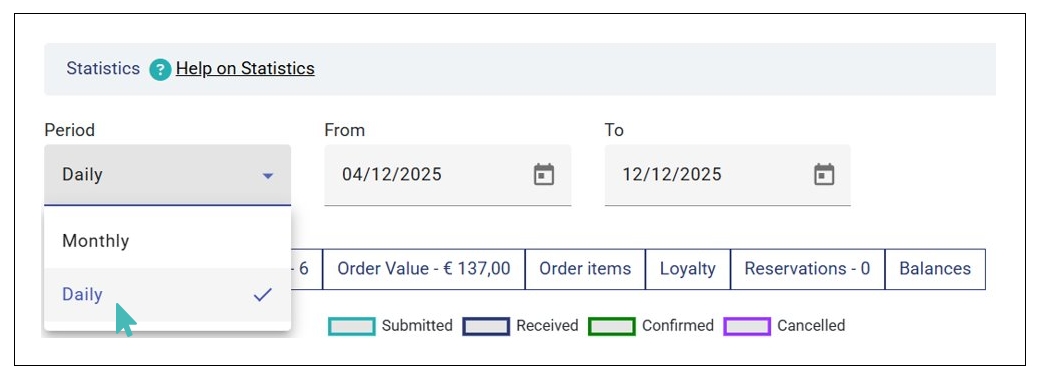
- Next, choose the statistics duration. Here, you need to select:
- Period. It can be Monthly or Daily, depending on your needs.
- From & To. This is the date range within which the statistics will cover.
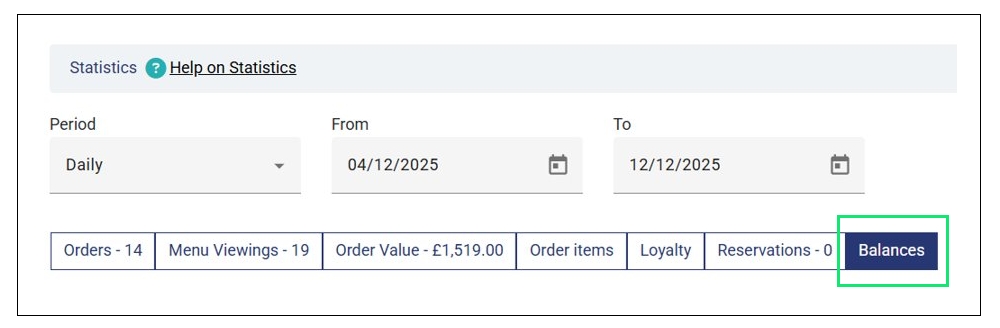
- Click the Balances tab to open the balance report.
Understanding Balance Statistics and Reports
As initially stated, the Balances report displays details about your sales and refunds. Depending on the selected period selected, the balance report will display the following:
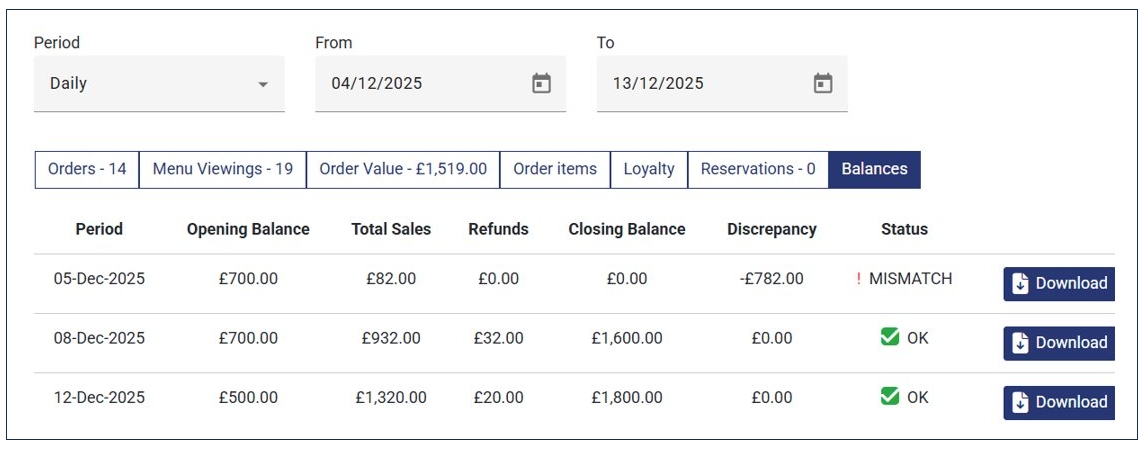
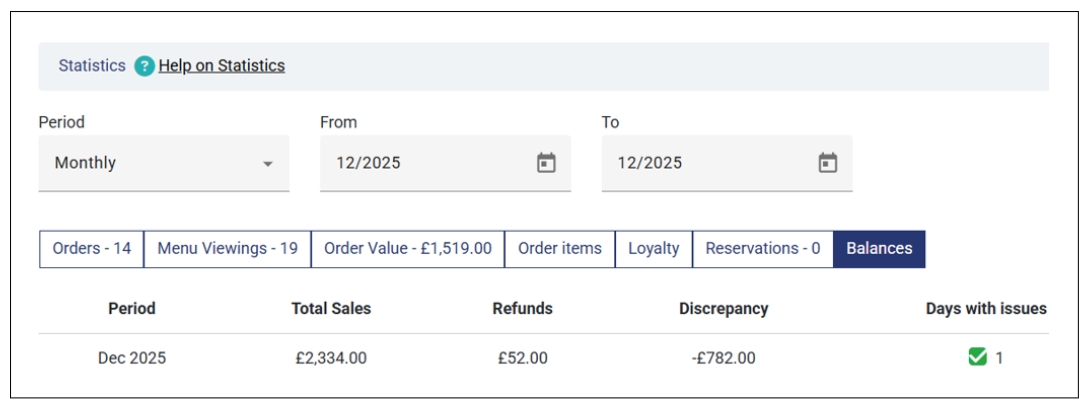
- Period. This is the date range of the report. For daily reports, this field shows the exact date (e.g., 05-Dec-2025). On the other hand, the monthly reports shows the period in per month (e.g., Dec 2025).
- Opening Balance (available in daily reports only). This is the amount you have at the beginning of a business day.
- Total sales. These are the total sales made over the selected period.
- Refunds. This is the amount refunded to customers over the selected period. For daily reports, it shows the total refunds made on that specific date while in monthly reports, it’s a total of all refunds made within a particular month.
- Closing Balance (available in daily reports only). This is the amount you had at the end of a particular business day.
- Discrepancy. This is the deviation of the actual closing balance from the expected closing balance. In daily reports, the discrepancy amount highlights the difference at the end of the business day. However, in monthly reports, the discrepancy is based on the summation of all the discrepancies throughout the month.
- Status (available in daily reports only). The status can be OK or MISMATCH. This depends on whether you have a discrepancy in the report or not. Days with discrepancies have a MISMATCH status while those without discrepancies (discrepancy is 0) have the OK status.
- Days with issues (available in monthly reports only). It shows the number of days that had a discrepancy in a month.
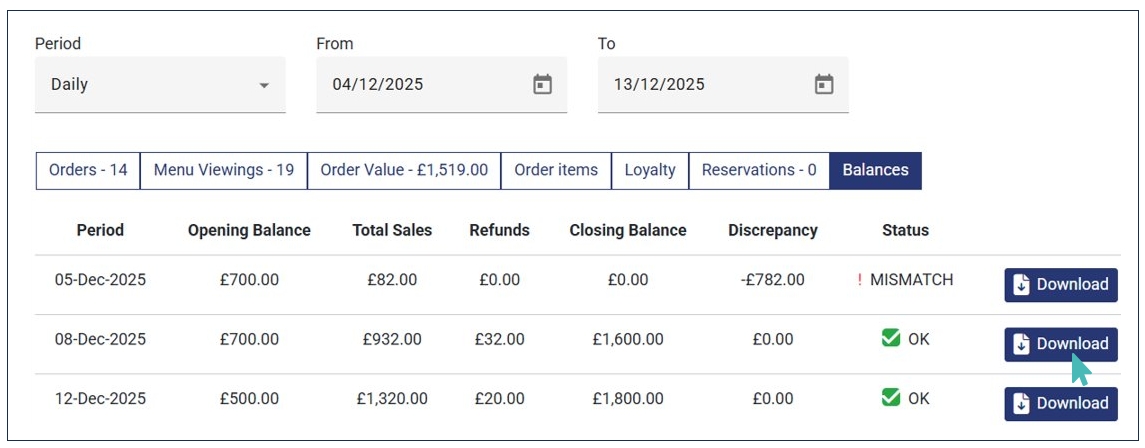
Here’s how the daily & monthly balances report look like, respectively.
Differences Between the Daily and Monthly Balance Reports
There are some notable differences between daily balance reports and month reports. They include:
- Opening and closing balances visibility. The opening and closing balances is only visible in daily balance reports. This is because the statistics are displayed per day. On the other hand, these balances are hidden in monthly balance reports.
- Status vs days with issues. In the daily balance report, if a day has a discrepancy, it shows a MISMATCH status. On the other hand, a monthly balance report shows the total number of days with discrepancy as Days with issues.
Download Your Daily Balance Reports
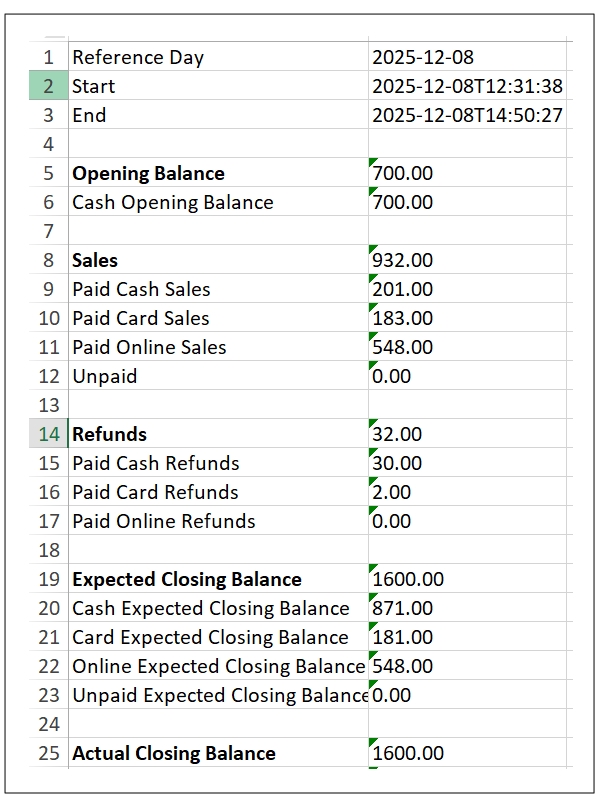
You can download your daily balance report in Excel for offline use. To do so, click the Download button on the report you’d like to download and save it on the desired location on your device.
Here’s a section of the Excel balance report.
How to Address the “No Data Found” Issue in Balance Reports
One of the most common issue you may encounter is finding no data in your balance statistics section despite receiving orders and making refunds over time.
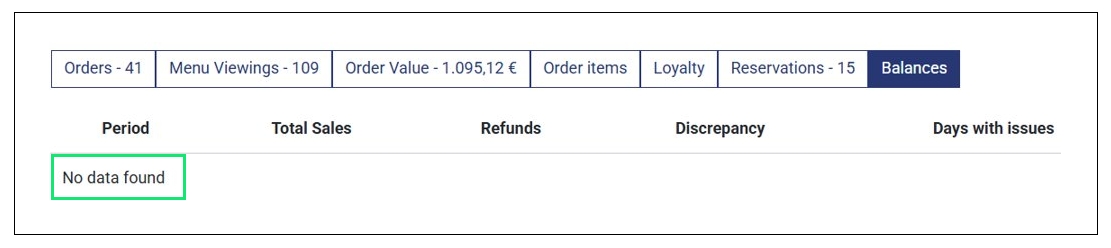
If this occurs, it means you have not been tracking your daily balance and refunds. To address this issue, go to Balance & Refunds > Balances and start tracking your balances and refunds at the beginning of each business day.
Visit the Balance & Refunds help article for a more comprehensive guide on tracking your sales & refunds.