payabl. enables you to receive online and terminal payments in your store. This ensures customers have a fast and convenient way to pay for their orders, whether they’re making physical or online payments. This article covers how you can connect your store with payabl. and start receiving online or physical payments effortlessly.
| Website | www.payabl.com |
| Supported Payment methods | Credit and debit cards, iDeal, Bancontact, Trustly, and more. See all supported payment methods. |
| Available countries | UK, Austria, Belgium, Cyprus, Denmark, Finland, France, Germany, Greece, Ireland, Italy, Netherlands, Norway, Portugal, Spain, Sweden, Switzerland, and many other European countries |
| Payment provider logo |  |
On This Page
- Connect Your Store to payabl.
- payabl. Online Payments Interface
- Deactivate payabl. Payments
- Disconnect payabl. From Your Store
Connect Your Store to payabl.
You can connect your store with payabl. for two types of payments:
- Online. As the name suggests, this option enables you to receive online payments via credit/debit cards or other supported online payment modes. No additional hardware is required to start receiving online payments via payabl.
- Physical Terminal. Unlike online payments, connecting your store for Physical Terminal payments requires you to have a physical terminal. Customers place orders at your store and then pay physically on the payment terminal using their credit/debit cards.
How to Connect Your Store with Payabl.
Here are the steps to follow to connect your store with payabl.
- Obtain the required integration details, that is, the Merchant ID and Secret. You can obtain these details from your payabl. account dashboard or by contacting their onboarding team.
- With the details ready, log in to your GonnaOrder store and navigate to Settings > Payments.
- Find the payabl. logo and click on the Connect button to proceed.
Connect Your Store With Payabl 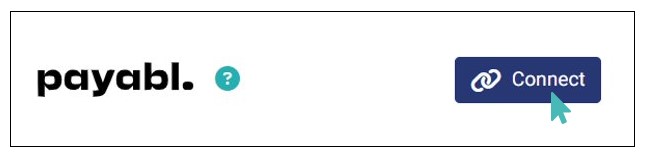
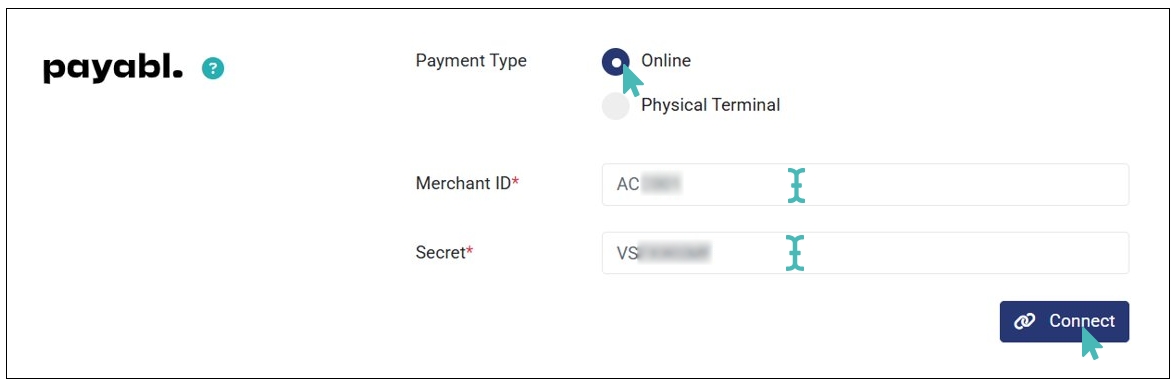
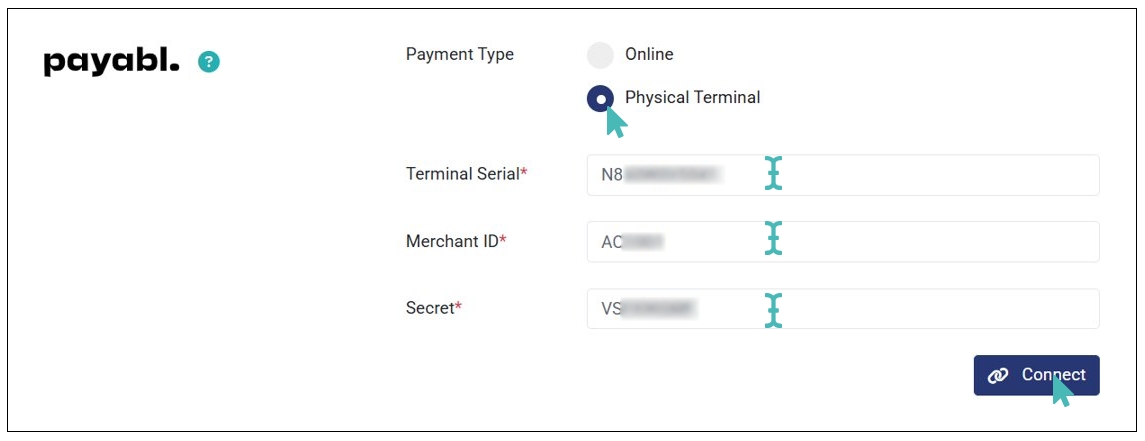
- Next up, choose your preferred Payment Type i.e., Online or Physical Terminal.
- For Online payments, enter your Merchant ID and Secret (obtained in step 1) and click Connect.
- For Physical Terminal payments, enter your Terminal Serial, Merchant ID and Secret (obtained in step 1) and click Connect.
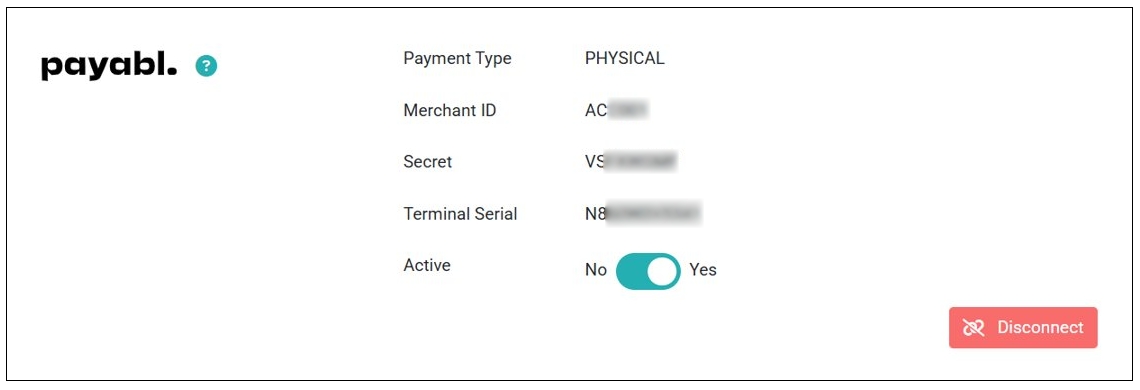
- Once you click Connect, your store is successfully connected to payabl. Therefore, you can start receiving payments either online or physical payments from the terminal depending on the type of payment selected when doing the integration.
Note
- You can only connect payabl. for one type of payment at a time, either Online or Physical Terminal, not both at once.
- If you have any difficulties finding your payabl. integration details (i.e., Terminal Serial, Merchant ID, and Secret) contact payabl. onboarding team.
payabl. Online Payments Interface
payabl. supports a number of payment methods including credit and debit cards, Alipay, Apple Pay, Skrill, Trustly, and WeChat Pay among others. As such, multiple payment methods may be available for your country or region. In that case, you can enable or disable certain methods from your dashboard.
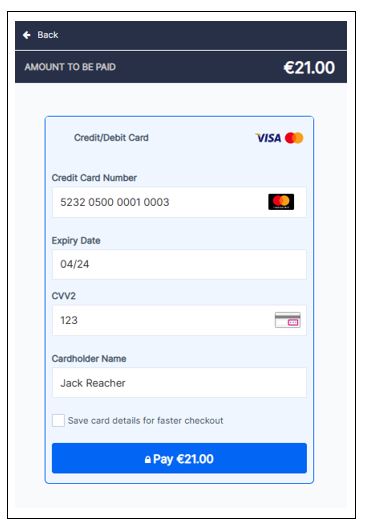
The payment interface is simple and intuitive. If multiple payment methods are enabled for your payabl. account, customers get the option to choose their preferred method. Otherwise, only the enabled payment method is displayed and customers can proceed to pay.
After entering payment details customers can click on the Pay button to complete payment and return to your store. Optionally, they can save their card details for faster checkout in the future.
Deactivate payabl. Payments
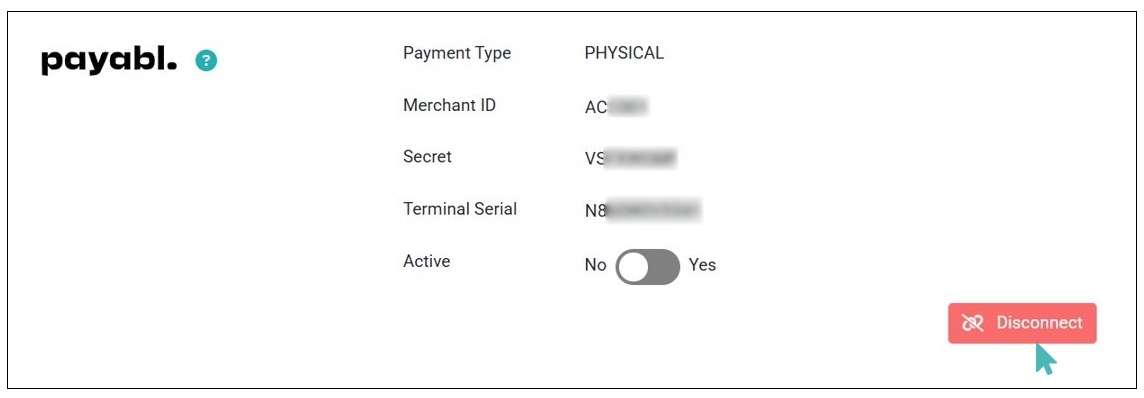
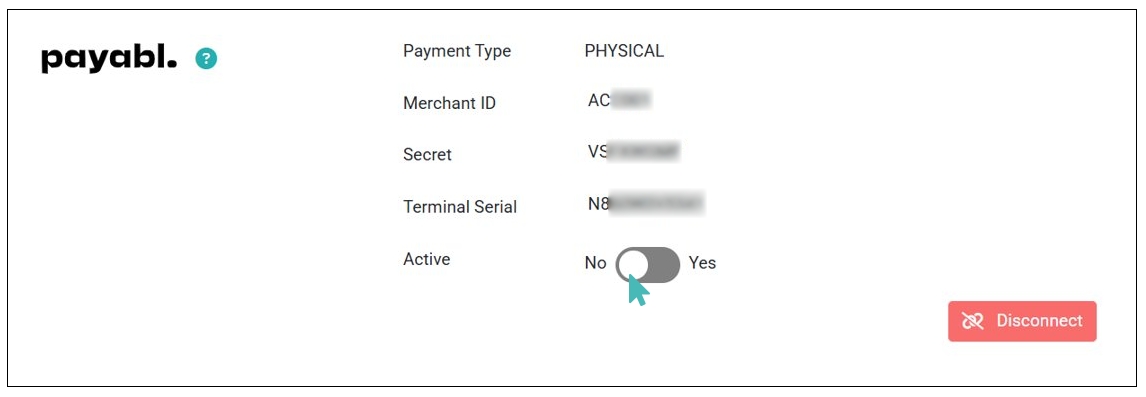
If in any case, you want to pause payabl. payments (either online or physical) and instead use other payment providers, you can always toggle the Active button to No.
When turning off payabl., ensure you have set up another payment provider to ensure you can continue receiving online or terminal payments.
Disconnect payabl. From Your Store
It is also possible for you to disconnect your store from payabl. payments. Notice that deactivating or disconnecting one payment provider may require you to enable another method to continue processing order payments.
To disconnect payabl. payments from your account, click on the Disconnect button. GonnaOrder will immediately delete your credentials. You can always reconfigure your store with new details or connect with the same details again.