You can view your store’s loyalty statistics over a given period. These stats are classified into two; Store Summary and Over Time. Whether you run a single store or a multi-store business, you can check all loyalty stats, from a single source. This can help you track the impact and effectiveness of your loyalty campaigns.
On This Page
- View Loyalty Statistics
- Understanding Loyalty Stats
- Addressing the „No Data Found“ Issue on Loyalty Statistics
View Loyalty Statistics
To view your store’s loyalty stats, you must have enabled the loyalty scheme on your store. When active, the loyalty scheme allows users to login, collect, and redeem loyalty points based on the amount they spent on your store.
Here are the steps to follow to view your store’s loyalty stats:
- Log into your store and navigate to Statistics & Reports on the side menu.
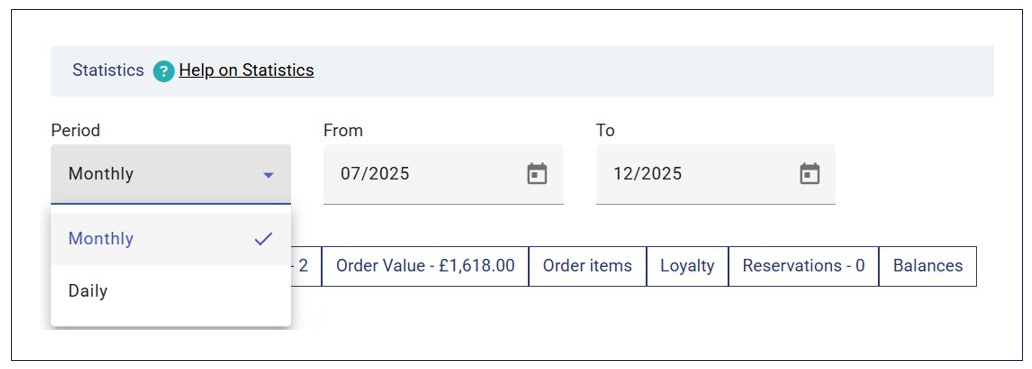
- Select the loyalty report period (i.e., Daily or Monthly and the date range).
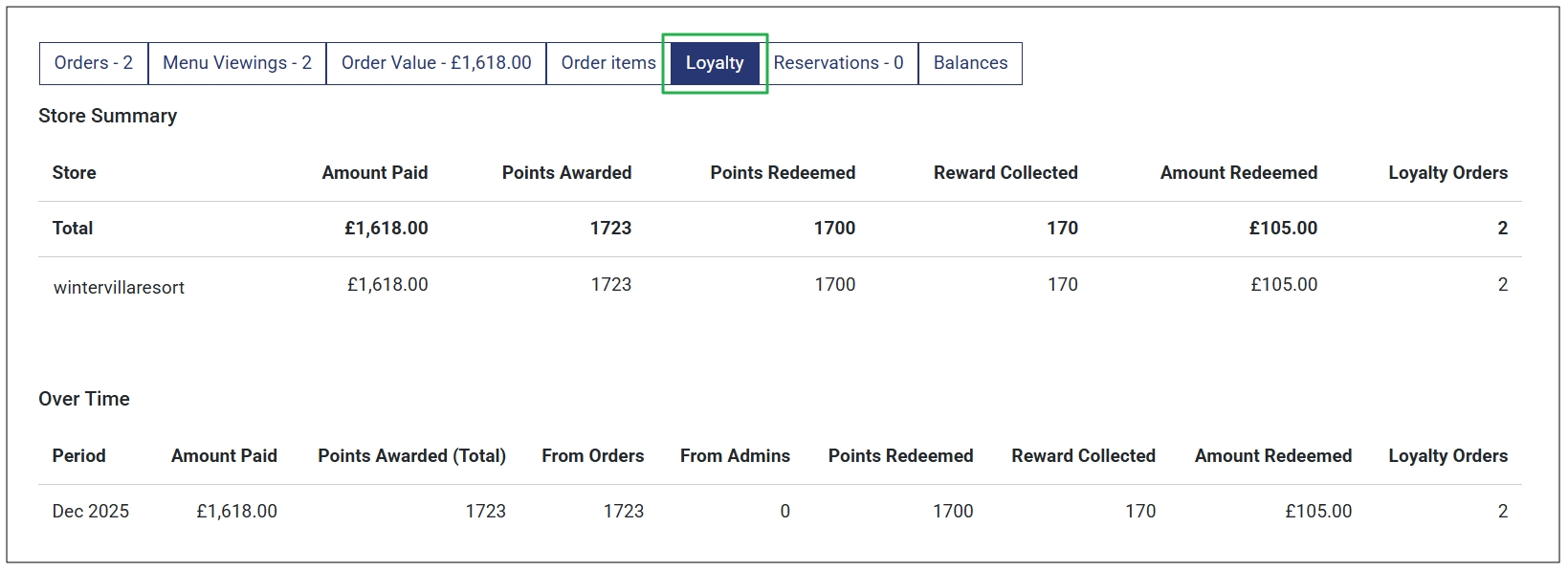
- Next, select the Loyalty tab to view all your loyalty stats over the selected duration.
Note
You can only view the loyalty statistics if you have set up a loyalty scheme for your store.
Understanding Loyalty Stats
The loyalty stats & reports tab is split into two, that is:
- Store Summary. This section shows the loyalty stats for each store in a multi-store setup. If a store is not part of a multi-store setup, you can only see a single store as seen in the previous section. Also, there’s a Totals section, which primarily shows the totals statistics if you have multiple stores.
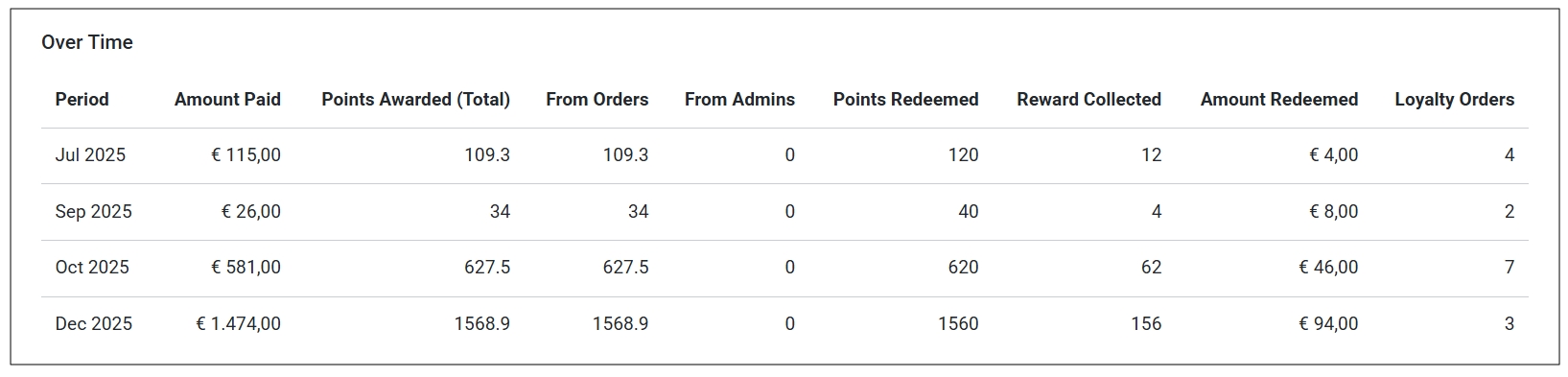
- Over Time. This section shows the loyalty stats over a given period. For Daily reports, the stats will show per day (e.g., 17 Dec 2025) while in Monthly stats, the period shows per month (e.g., Dec 2025).
Store Summary Details
The store summary sections shows the following fields:
- Store. This field shows the store from which the loyalty points were collected. For single store setups, only one store is shown. For multi-stores, you can see the loyalty stats summary for each store in the multi-store setup.
- Amount Paid. This is the amount paid for orders with loyalty – not all orders.
- Points Awarded. Loyalty points awarded for orders per store over the chosen period.
- Points Redeemed. Loyalty points redeemed for orders per store over the selected period.
- Reward Collected. This is the total amount of loyalty rewards collected by customers over the selected period
- Amount Redeemed. Total amount of redeemed by customers per store during the period in question.
- Loyalty Orders. These are the number of orders where customers made a loyalty transaction, either by collecting or redeeming loyalty points. Therefore, not all store orders are considered.
Single Store Vs Multi-Store Loyalty Statistics
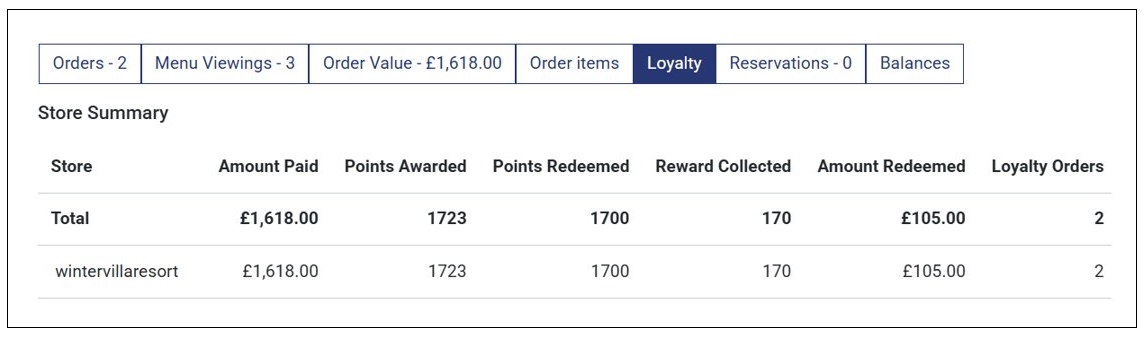
For single stores, the loyalty numbers or stats in the Store row and the Total row is the same since there’s only one store.
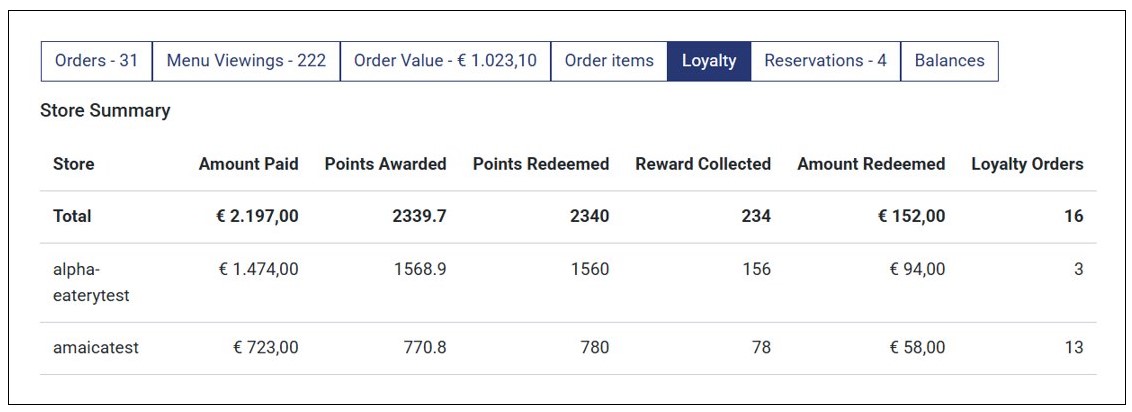
On the other hand, the loyalty stats summary for stores in a multi-store setup shows the loyalty stats of each store and then their total is added on the Total row.
Over Time Loyalty Statistics
As initially stated, this section shows loyalty stats per day or per month depending on whether you chose Daily or Monthly statistics period. Days or Months with no loyalty statistics (within the selected period) are excluded from the list.
This section has the following fields:
- Period. Can be in days or months depending on whether you choose Daily or Monthly period.
- Amount Paid. This is the total value of loyalty orders placed in a particular day or month within the selected statistics period.
- Points Awarded (Total). Total loyalty points awarded per day or month.
- From Orders. Total loyalty points earned from orders within the period in question.
- From Admins. Total loyalty points awarded to customers by store admins within the period in question.
- Points Redeemed. Total loyalty points redeemed by customers with the given period.
- Reward Collected. Total loyalty points collected by customers over the period in question.
- Amount Redeemed. This is the money redeemed by customers from loyalty points with the specified period.
- Loyalty Orders. This is the number of orders where a customer collected or redeemed loyalty points with a given period. Therefore, orders that do not qualify for loyalty points (e.g., orders placed by customers without signing in) are not considered.
Addressing the „No Data Found“ Issue on Loyalty Statistics
One of the most common issues you may encounter is finding no loyalty statistics on your store.
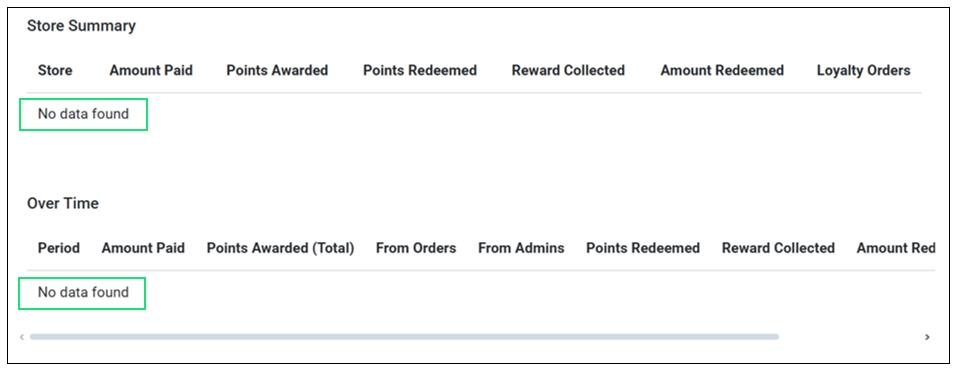
Here are main reasons behind the „No data found“ issue in loyalty stats:
- You have not enabled a loyalty scheme for your store. To set up one, navigate to your store Settings > Loyalty and create your loyalty program.
- If you run a multi-store setup and cannot find your store’s loyalty stats, enable Inherit customers, vouchers and loyalty from parent store under Multi-Store & Multi-Catalog settings.